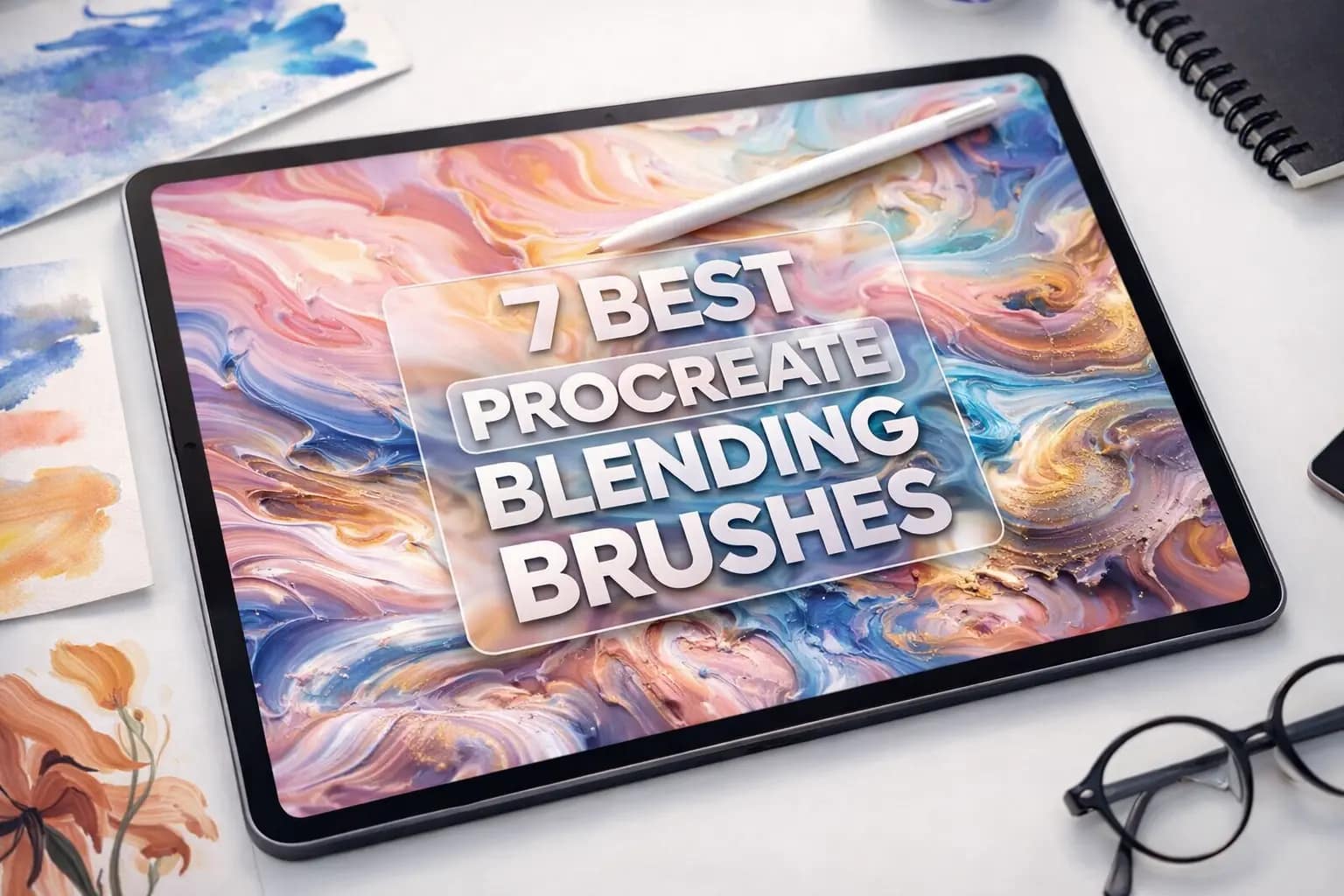
Using the Smudge tool in Procreate often feels like rubbing your art with a dirty finger — everything turns into a muddy blur. Real oil paint doesn't work like that.
To get smooth, buttery gradients and realistic color mixing, you need specialized tools. I’ve tested dozens of packs and selected the 7 best blending brushes that keep your colors rich and your transitions flawless.
🏆 Editor’s Choice
The 4 best tools for smooth & realistic mixing.
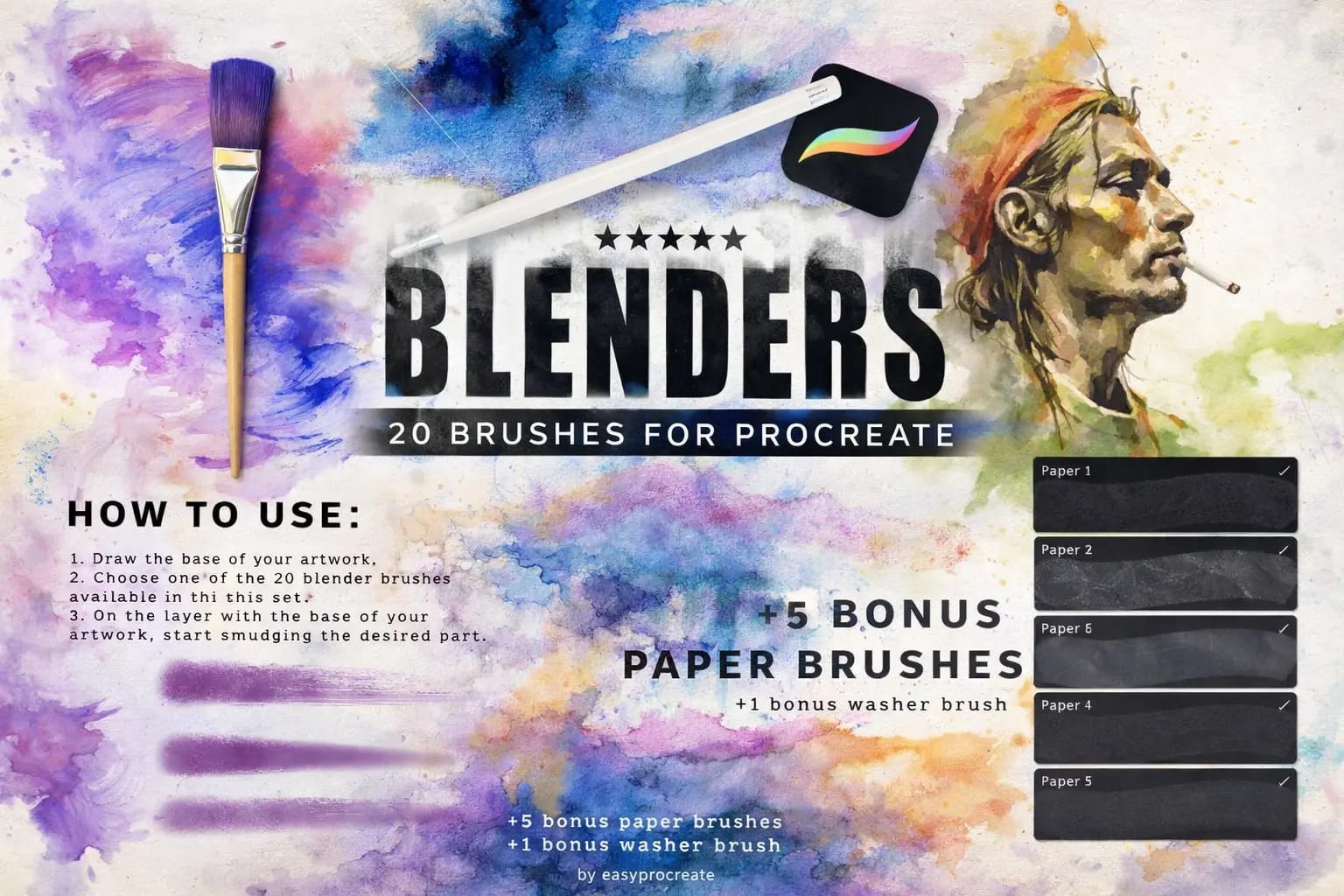
Ultimate Blending Set
The holy grail of smooth transitions. Includes 30 brushes specifically made for the Smudge Tool.
VIEW BUNDLE →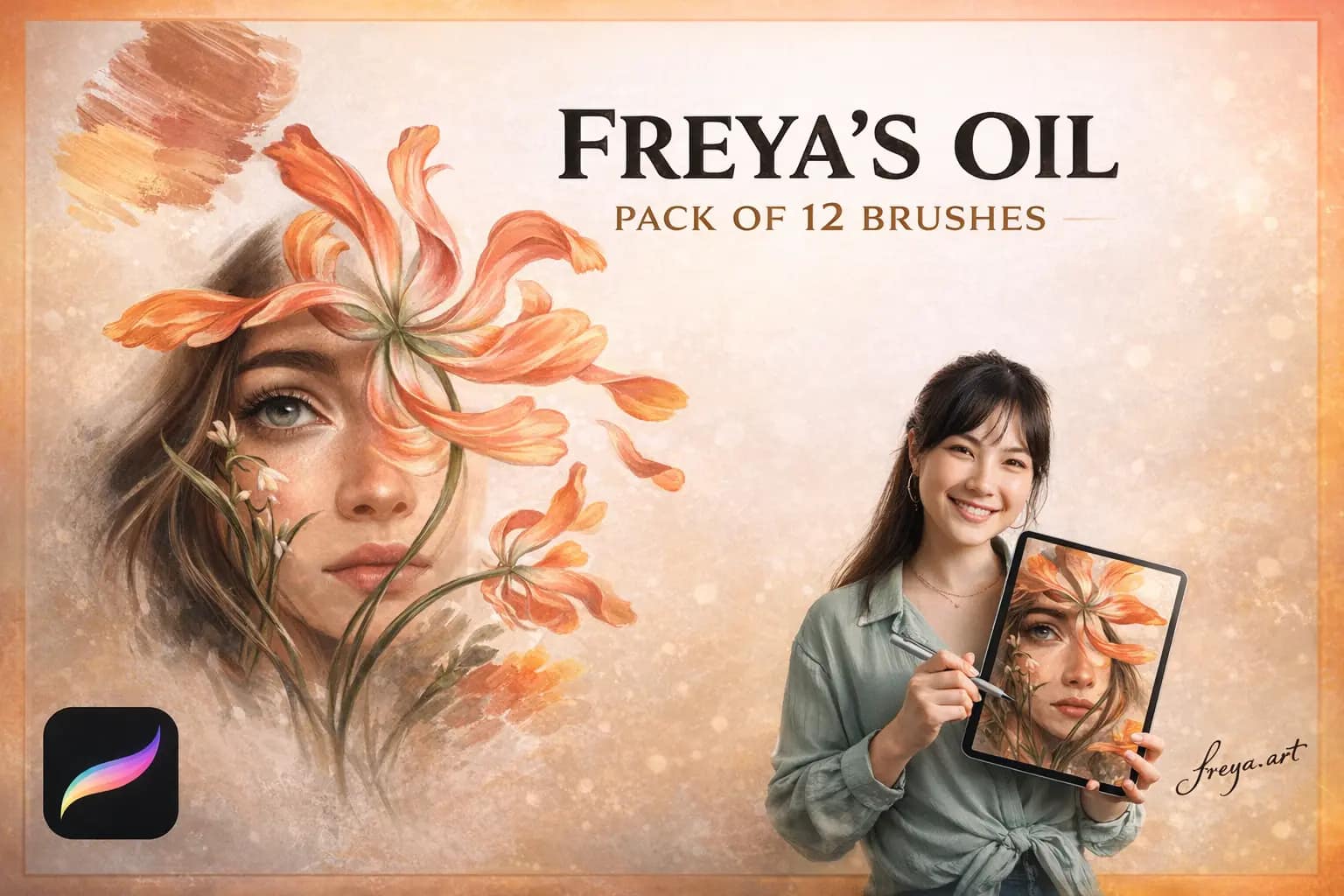
Wet Oil & Acrylics
Utilizes Procreate's wet mix engine. Colors drag and mix together just like real thick paint.
VIEW OIL KIT →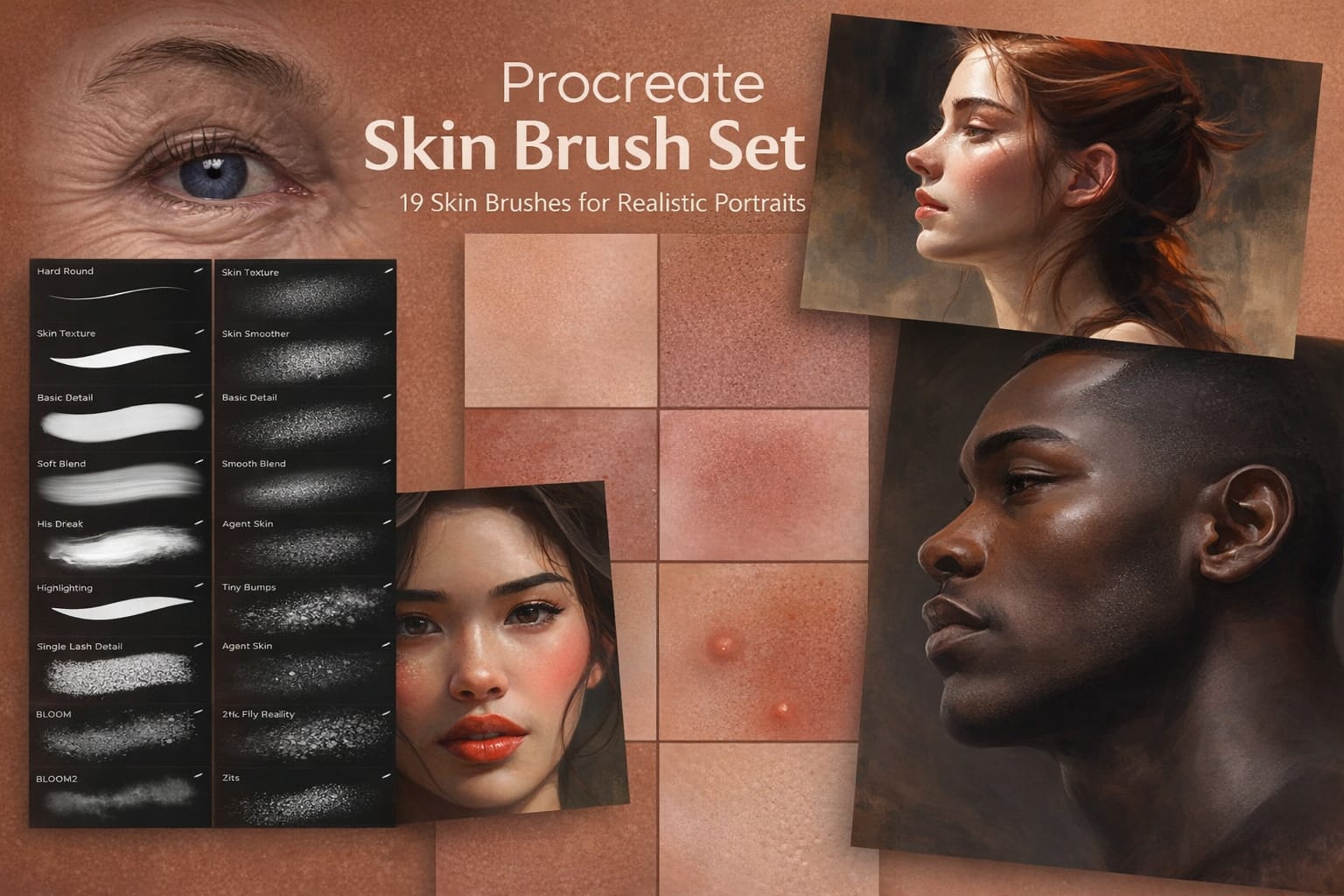
Portrait Painting Kit
Essential for portrait artists. Soft blenders for cheeks and shadows that keep the skin texture.
VIEW SKIN SET →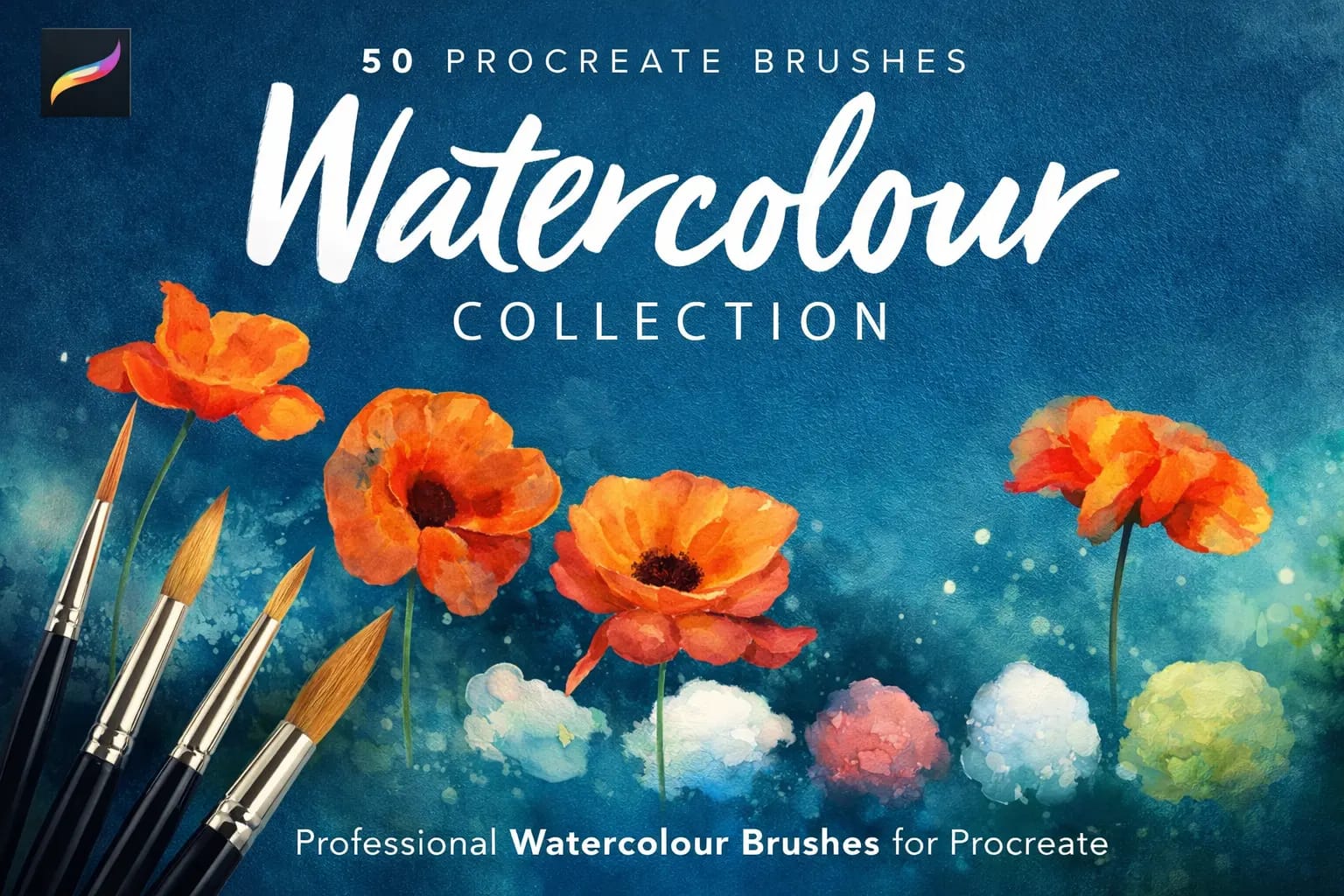
Realistic Watercolor
A specialized set where the blender mimics water, creating blooms and soft washed edges.
VIEW WATER KIT →DIY: How to make a Smudge Brush
Get these brushes for Free
Skip the manual setup. Get any premium pack from this list for free with the $1 All-Access Trial.
The 7 Best Procreate Blending Brushes (Ranked)
Below is my curated list of the smoothest mixers, wet paint simulators, and seamless gradients. I’ve categorized them by medium—from Thick Oils & Acrylics for painterly strokes to Soft Skin Blenders for realistic portraits—so you can stop struggling with the standard Smudge tool and achieve perfect transitions instantly.
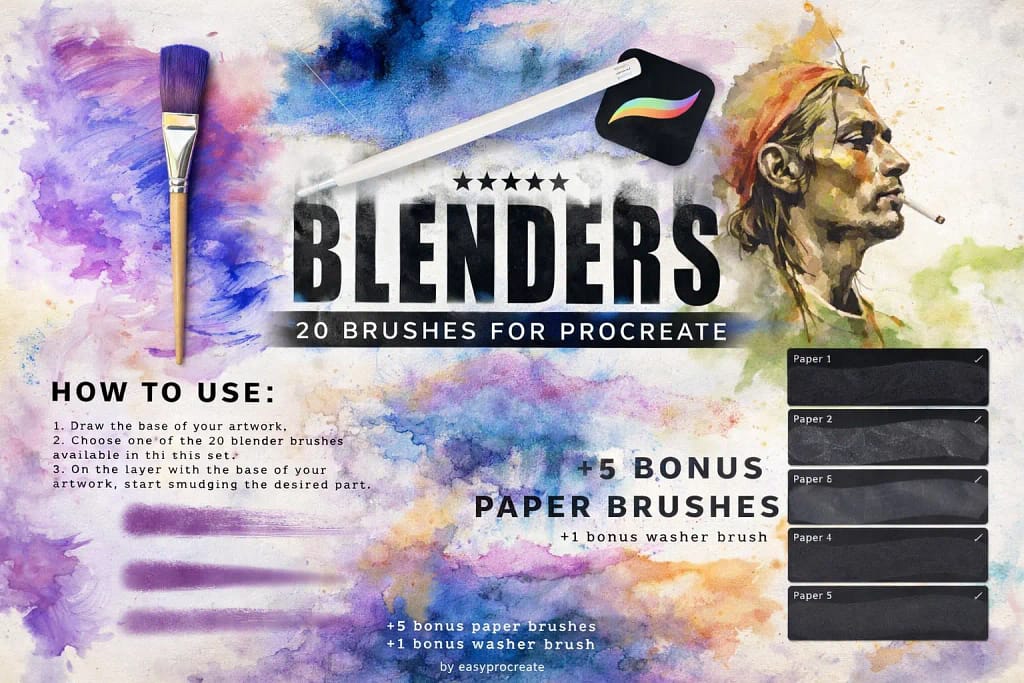
Why I picked it:
- ✅ Zero "Muddy" Colors: The main issue with digital blending is desaturation (gray colors). These brushes preserve the vibrancy of your pigments even when you over-blend.
- ✅ Specific Textures: It’s not just one smooth airbrush. I loved the "Canvas Smudger" and "Textured Drag" tools which leave a painterly grain behind, making the art look less digital.
- ✅ Bonus Paper Textures: The included paper overlays work perfectly with the blenders to create a unified, traditional look instantly.
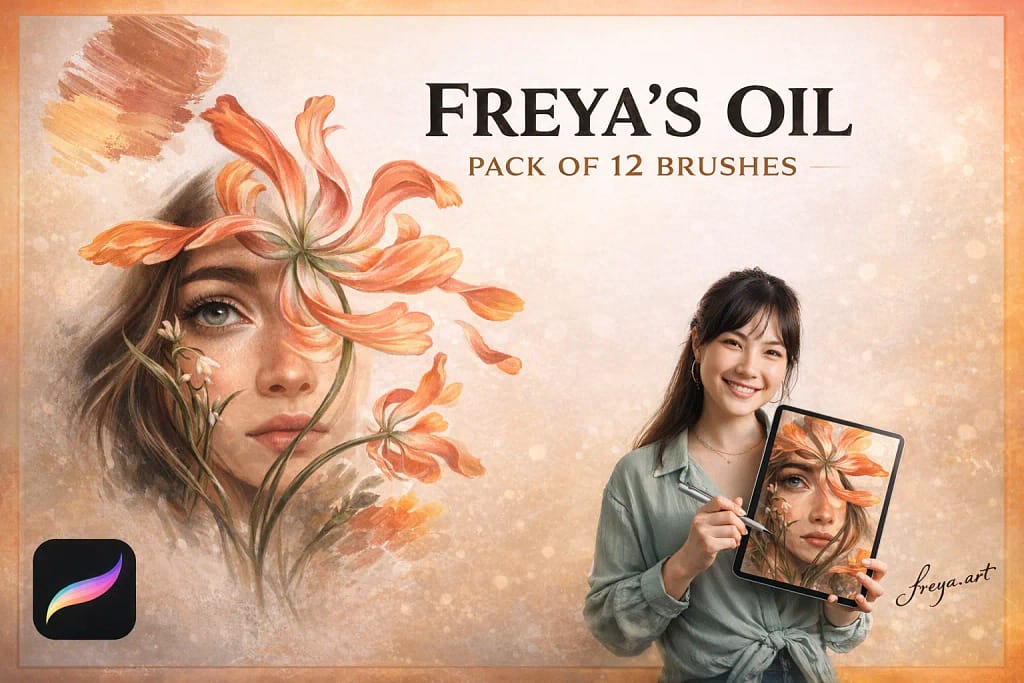
Why I picked it:
- ✅ Realistic Color Drag: When you paint over a dark color with a light brush, it picks up the underlying tone and drags it, exactly like a real bristly brush would.
- ✅ Impasto Feel: The "Tip Brush" and "Old Brush" variants add a 3D-like depth to the strokes, making the blending look thick and substantial, not flat.
- ✅ Happy Accidents: The blending isn't perfectly predictable, which is good! It introduces random textures and mixings that make the piece look handcrafted.
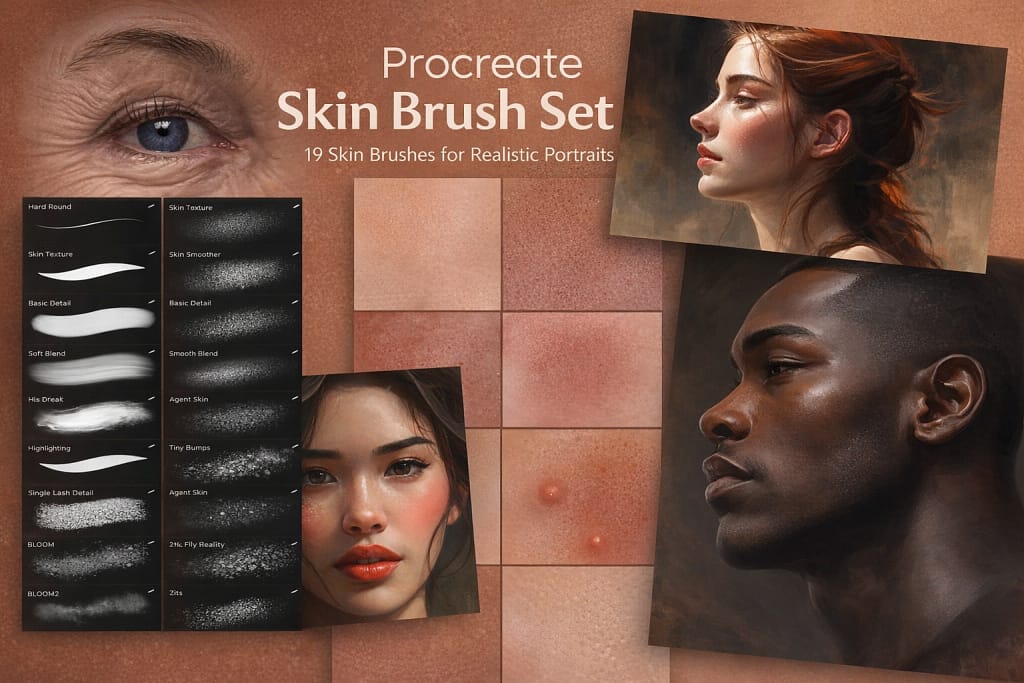
Why I picked it:
- ✅ Texture Preservation: Unlike the default airbrush, these blenders have a micro-grain texture. This means even when you smooth out a forehead, it still looks like skin, not 3D render.
- ✅ Specialized Tools: Includes brushes for freckles, pores, and eyelashes blending, which saves hours of manual detailing.
- ✅ Subtle Transitions: The opacity control on these brushes is tuned perfectly for building up subtle blushes and contouring layer by layer.
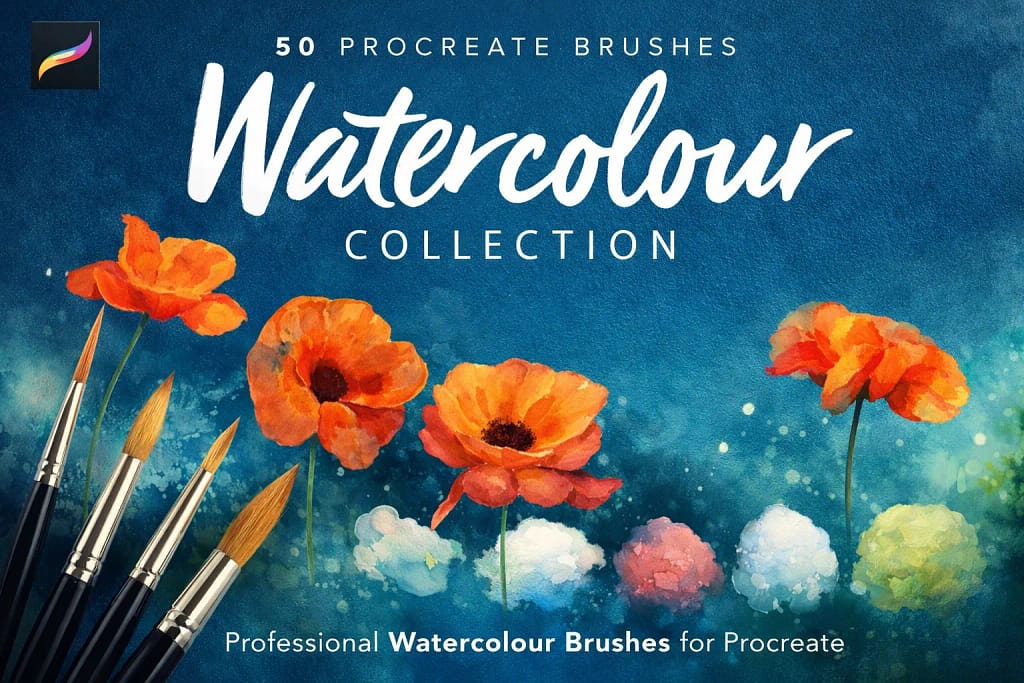
Why I picked it:
- ✅ Wet Edge Effect: When blending, the pigment pushes to the edges of the stroke, creating that authentic dark rim (the "coffee stain" effect) that real watercolor has.
- ✅ Splatter Blending: I loved using the splatter blender to break up solid areas of color, making them look like dynamic, accidental splashes.
- ✅ Paper Interaction: The blending brushes interact with the paper grain, leaving white speckles that add lightness and air to the illustration.
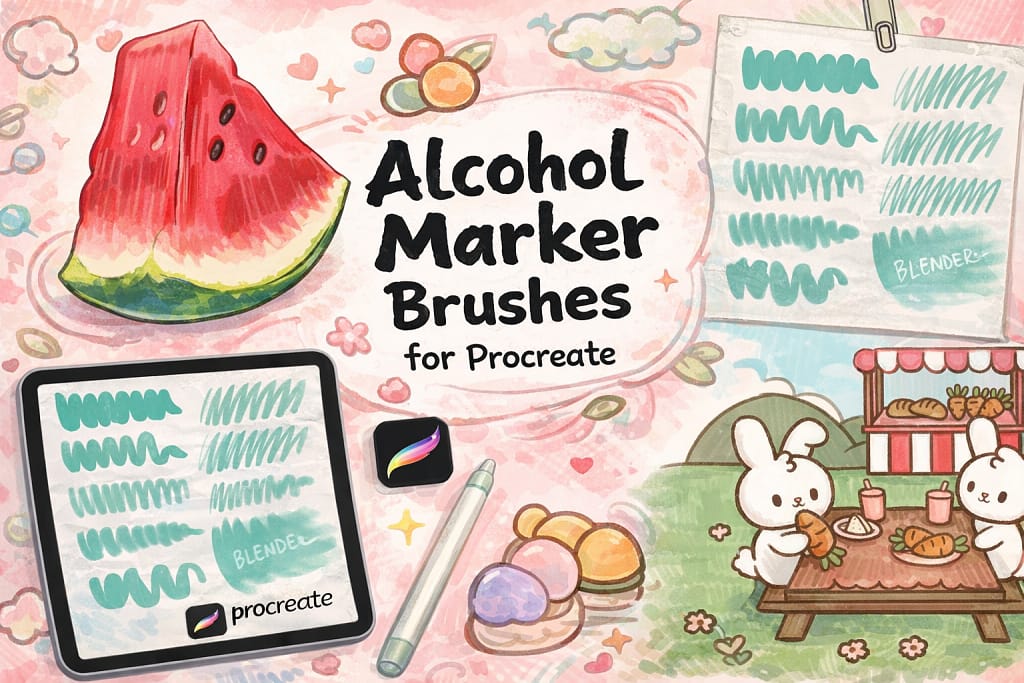
Why I picked it:
- ✅ Layering Capabilities: The blending isn't fully opaque. You can build up saturation by layering strokes, just like real alcohol ink.
- ✅ Authentic Streaks: It doesn't over-smooth. The brushes leave subtle streaks that are characteristic of marker art, giving it a sketchy, energetic vibe.
- ✅ Colorless Blender Logic: I found the dedicated blender tool amazing for creating soft gradients and fixing mistakes by "pushing" the ink back.
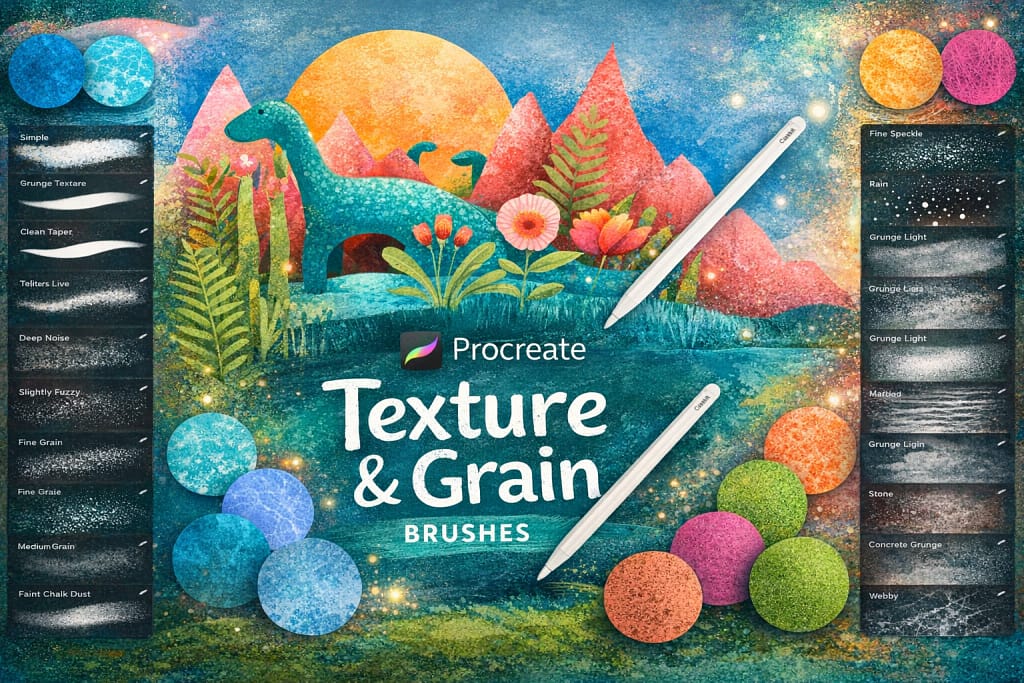
Why I picked it:
- ✅ Noise Gradients: The "Grit Shader" brushes allow you to paint in shadows that naturally fade out into specks of dust, rather than a blur.
- ✅ Overlay Compatibility: Using these in "Multiply" mode over flat colors creates instant depth and warmth that feels like risograph printing.
- ✅ No Banding: Smooth digital gradients often suffer from color banding. These textured shaders eliminate that problem entirely by using noise to break up the transition.
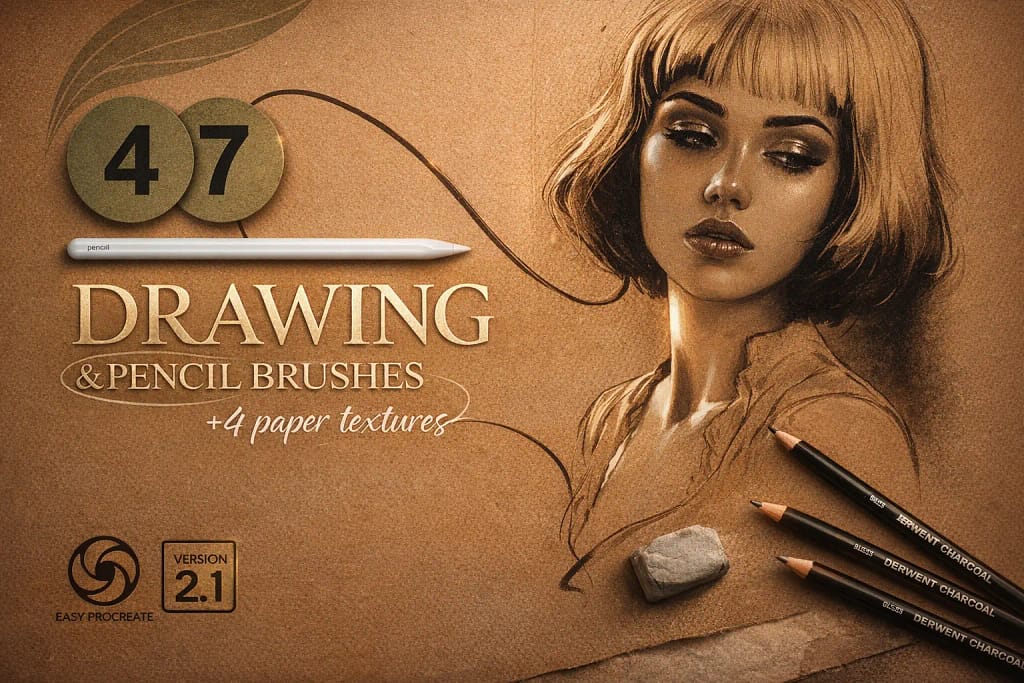
Why I picked it:
- ✅ Dirty Eraser Effect: I loved that some blenders act like a kneaded eraser, lifting pigment slightly while smudging it, which is perfect for highlights.
- ✅ Hatching Integration: You can soften harsh cross-hatching lines without obliterating them completely, keeping the structural integrity of your sketch.
- ✅ Authentic Grey Tones: The blending interacts beautifully with the tilt function, creating broad, soft washes of grey just like using the side of a pencil lead.
FAQ
For most artists, the standard airbrush is too soft and lacks texture, making art look "digital." We recommend the Ultimate Blending Set (featured as #1 in this list) because it is specifically engineered for the Smudge Tool. It creates "buttery" smooth transitions that look like real wet paint rather than a simple blur.
To create a DIY blender, duplicate a standard brush and go to the Wet Mix settings. Increase the Dilution to Max and set Pull to about 50%. However, getting the grain and flow right can be tricky. It is often faster and more effective to download a professional set that has already been calibrated for perfect mixing.
This happens when you over-blend using brushes with low opacity settings. Procreate's engine can desaturate colors when they mix too much. To fix this, use a Wet Mix Brush (like the Oil & Acrylics set) which drags the pigment across the canvas rather than just blurring it. This keeps your colors vibrant and rich.
Yes! While these are professional-grade tools, you can legally download them for $0 by activating a Free Trial on Creative Fabrica. This grants you All-Access to download every pack on this list (plus thousands more) without paying upfront. It’s the best way to build your library risk-free.
For portraits, avoid perfectly smooth brushes as they make skin look like plastic. We recommend using the Portrait Painting Kit mentioned above. It includes "Pore Blenders" and "Soft Grain" brushes that smooth out the shading while preserving that essential microscopic texture of real skin.


