Designing a tattoo sleeve or character outfit on a flat 2D canvas can be frustrating. You never really know how the design will wrap around a real arm or body until it’s too late.
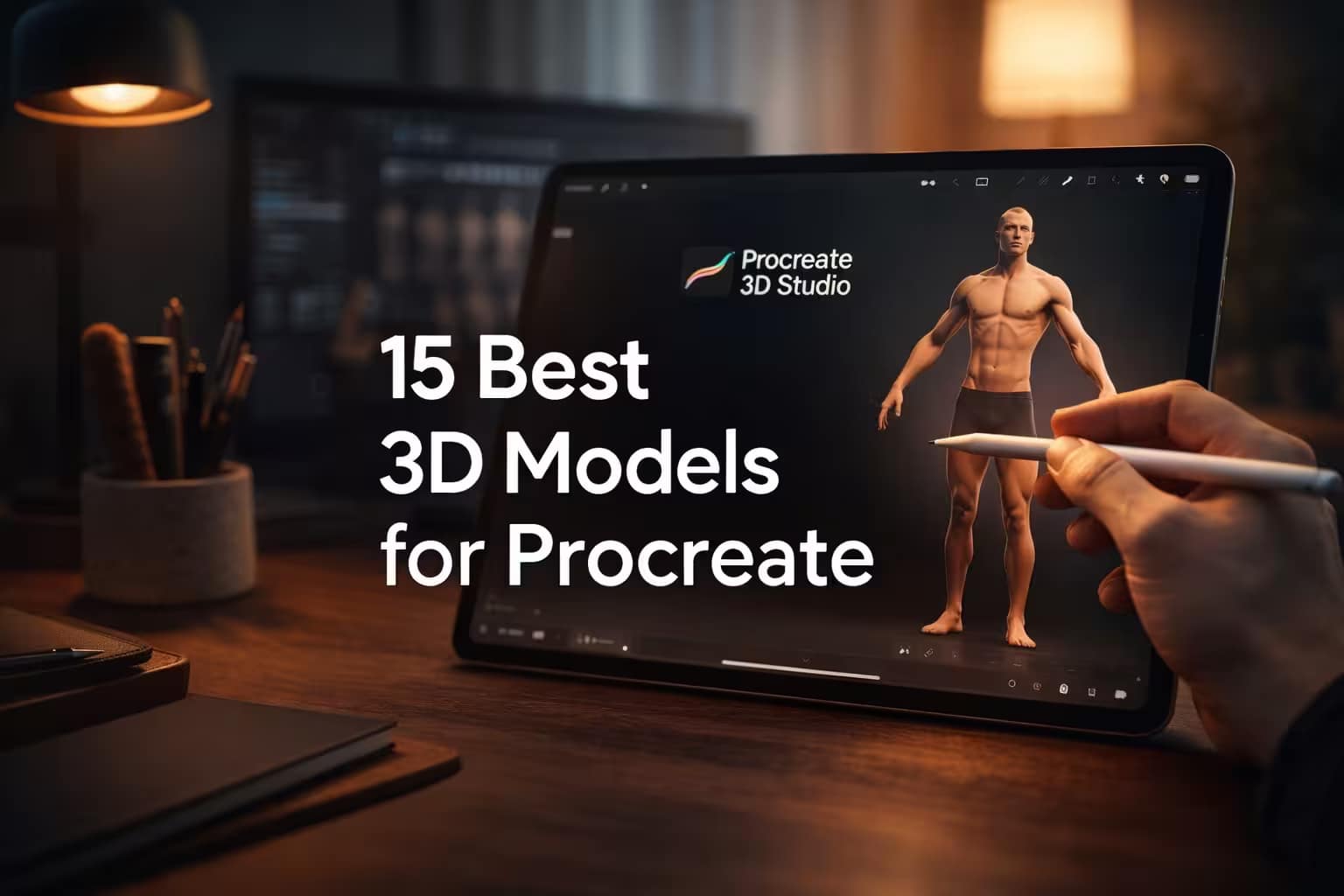
That’s why the Procreate 5.2 update was a game-changer. By importing 3D models (.OBJ / .USDZ) directly into Procreate, you can paint straight onto 3D surfaces. I’ve tested and gathered the 15 best 3D models and 3D-effect tools—from full-body canvases for tattoo stencils to 3D shape stamps for instant volume. Let’s dive in.
🏆 Editor’s Choice
The 4 must-have 3D models for tattoo artists and character designers.

Male Body Bundle
The ultimate 3D male figure. Perfect for sketching full-body tattoos, armor designs, and anatomy studies directly in Procreate.
VIEW BUNDLE →
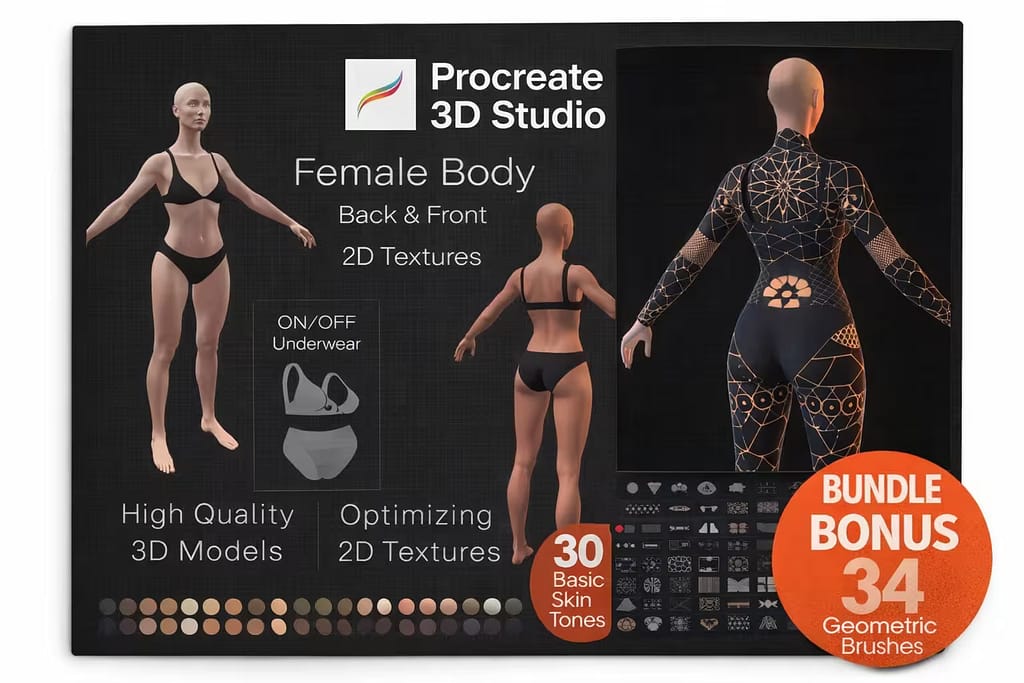
Female Full Body
High-quality female 3D model with optimizing 2D textures. A must-have for presenting your concepts professionally.
VIEW BUNDLE →
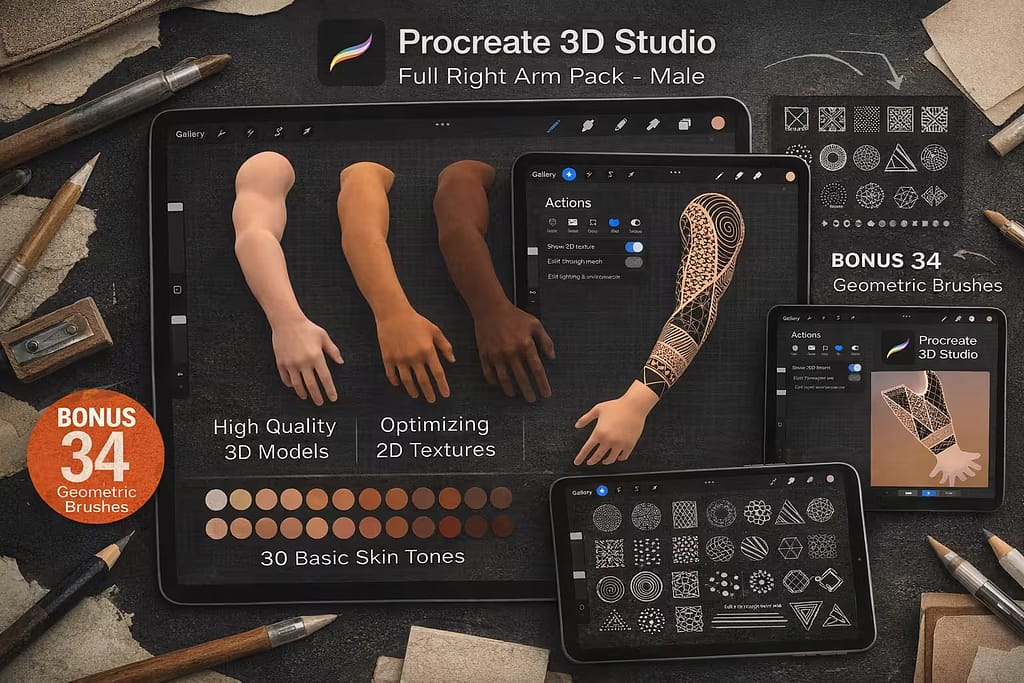
Right Arm Male
Planning a complex tattoo sleeve? Wrap your designs flawlessly around this realistic male 3D arm model.
VIEW BUNDLE →
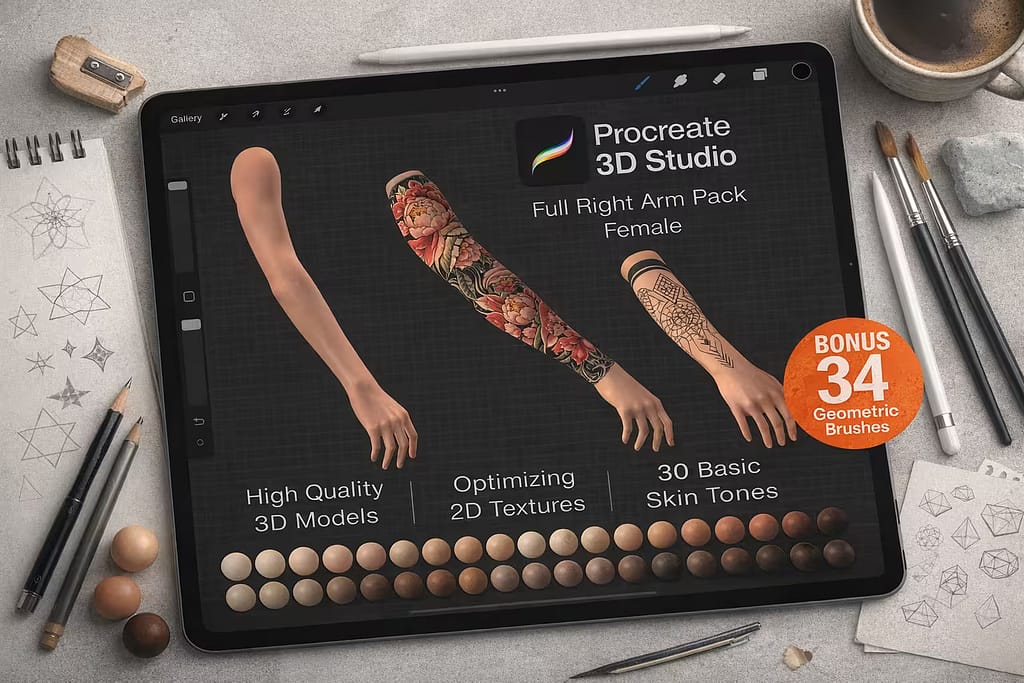
Right Arm Female
Elegant female arm canvas for delicate tattoo placements, floral sleeves, and jewelry design mocking.
VIEW BUNDLE →Stop Buying Single 3D Models!
Why pay $10 for a single 3D arm when you can download ALL the models, 3D stamps, and tattoo brushes on this list?
Pro Tip: Grab the Creative Fabrica Subscription (or Trial) to get unlimited, legal access to thousands of premium Procreate assets instantly.
⚙️ How to Import 3D Models (.OBJ / .USDZ) into Procreate
Download the Files
Download your premium 3D model pack to your iPad. Unzip the folder and locate the .USDZ or .OBJ files.
Open Procreate Settings
Launch Procreate. Tap the Wrench icon (Actions) in the top-left corner, then tap the Add menu tab.
Insert & Paint!
Tap "Insert a file", find your saved 3D model, and tap to load it. You can now rotate the 3D canvas and paint directly on it!
The 15 Best 3D Models & Tools for Procreate
Below is the full collection. I’ve broken it down into true 3D .OBJ/.USDZ files for modeling and tattoo stenciling, followed by a bonus section of 3D-effect brushes and stamps to add instant volume to your 2D artwork. Let's find your perfect canvas.
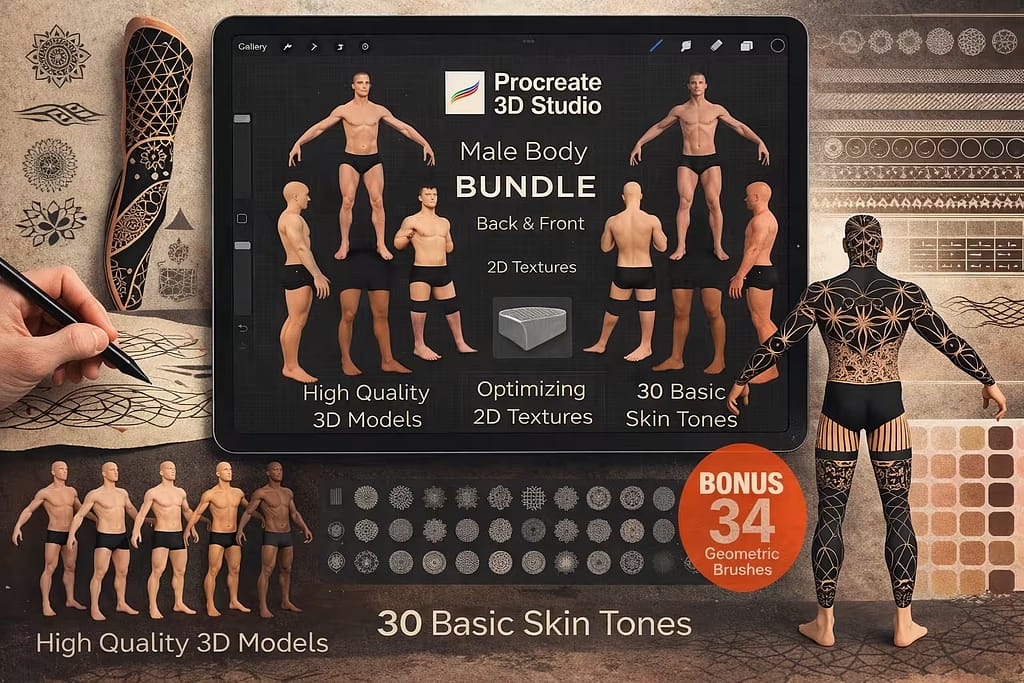
Why I picked it:
- ✅ Flawless Wrap: I was amazed at how naturally my 2D brushes glide across the 3D muscular contours without breaking.
- ✅ Presentation Ready: Showing clients their future tattoo on a realistic 3D body drastically increased my booking rate.
- ✅ Zero Lag: Despite being a highly detailed 3D mesh, it runs incredibly smoothly on my iPad, even with heavy textures.

Why I picked it:
- ✅ Smooth Proportions: I love how the delicate shading of the model highlights the fine lines of my tattoo sketches.
- ✅ Easy to Texture: Dropping reference colors and custom skin tones onto this model feels entirely organic and fast.
- ✅ Client Confidence: Being able to rotate the design 360 degrees gives my clients total peace of mind before the needle hits the skin.

Why I picked it:
- ✅ Focused Workspace: I found it much easier to focus purely on arm dynamics without the distraction of a full-body mesh.
- ✅ Seamless Connection: Testing how the inner and outer arm designs connect is now a simple, one-minute task.
- ✅ Realistic Musculature: The anatomy is spot-on, helping me align focal points perfectly with the natural muscle flow.

Why I picked it:
- ✅ Refined Anatomy: The wrist and forearm structure is incredibly realistic, which is crucial for precise stencil placement.
- ✅ High-Res Surface: Even when zoomed in for micro-realism details, the 3D model's surface remains crisp and workable.
- ✅ Social Media Gold: Exporting a spinning video of this 3D arm always gets incredible engagement on my Instagram.

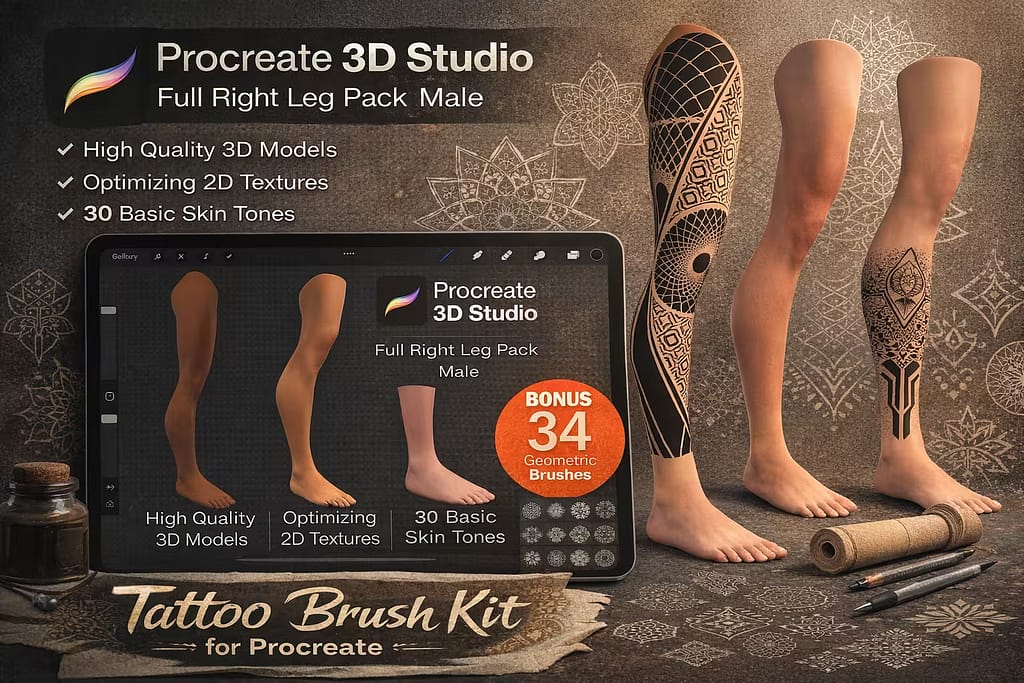
Why I picked it:
- ✅ Accurate Muscle Definition: The defined calf and thigh muscles help me place focal points exactly where they belong.
- ✅ Time Saver: I no longer waste hours adjusting warped paper stencils during the actual tattoo session.
- ✅ Seamless Rotation: Painting continuously from the shin to the back of the calf feels incredibly fluid.

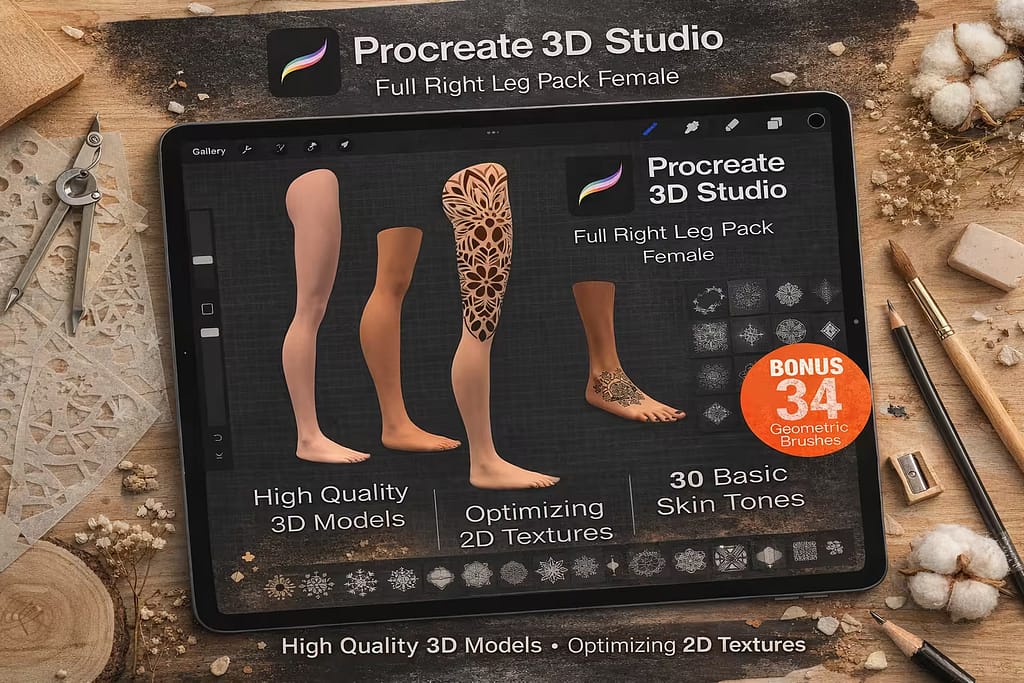
Why I picked it:
- ✅ Natural Curvature: I love how my ornamental designs drape naturally over the hip and thigh area.
- ✅ Effortless Pitching: Showing a client exactly how a piece looks walking from different angles is a total game-changer.
- ✅ Quick Import: The file is perfectly compressed, loading into my Procreate gallery instantly without errors.

Why I picked it:
- ✅ Print-Ready Visualization: I could see exactly how my typography wrapped around the cup in real-time.
- ✅ Interactive Lighting: Adjusting the studio lights in Procreate gave the ceramic material a highly realistic gloss.
- ✅ Portfolio Boost: Exporting a 3D animated spin of the mug makes my shop listings look incredibly premium.

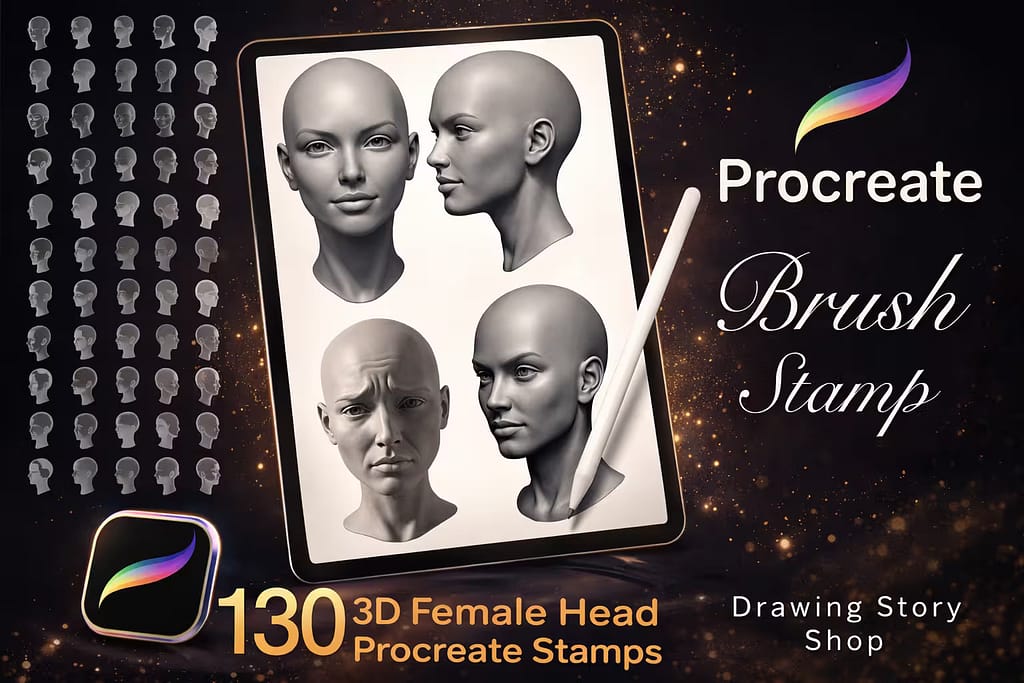
Why I picked it:
- ✅ Massive Variety: With 130 different angles, I found the perfect tilt and perspective for literally any pose.
- ✅ Perfect Proportions: It completely eliminated my struggles with drawing jaws and cheekbones in harsh perspective.
- ✅ Ultimate Time-Saver: Instead of building construction lines, I drop a stamp and start rendering immediately.

Why I picked it:
- ✅ Dynamic Angles: I was able to sketch difficult top-down and extreme profile angles effortlessly.
- ✅ Soft Features: The base meshes have beautiful, natural contours that are very easy to paint over and customize.
- ✅ Customization: I love dropping the opacity of the stamp and building my own unique faces right on top.

Why I picked it:
- ✅ High-Quality Detailing: Even the teeth and eye sockets are rendered with crisp, realistic shadows.
- ✅ Instant Volume: I just stamp it down, and I immediately have a 3D foundation to wrap snakes or roses around.
- ✅ Versatile Lighting: The pre-rendered 3D shading makes it incredibly easy to color-pick and blend into my art.

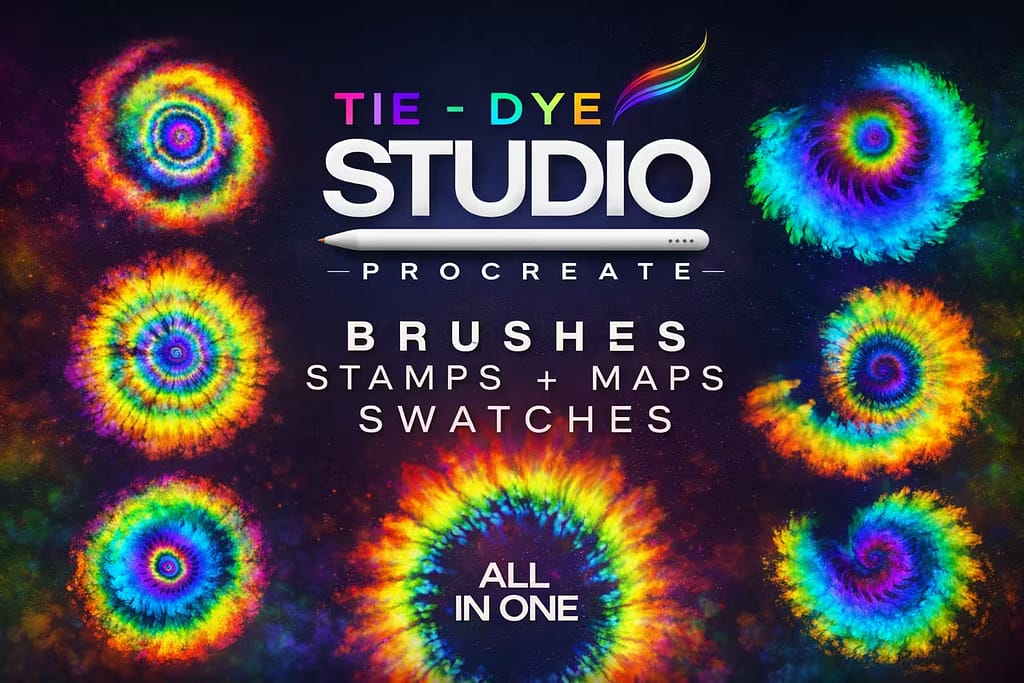
Why I picked it:
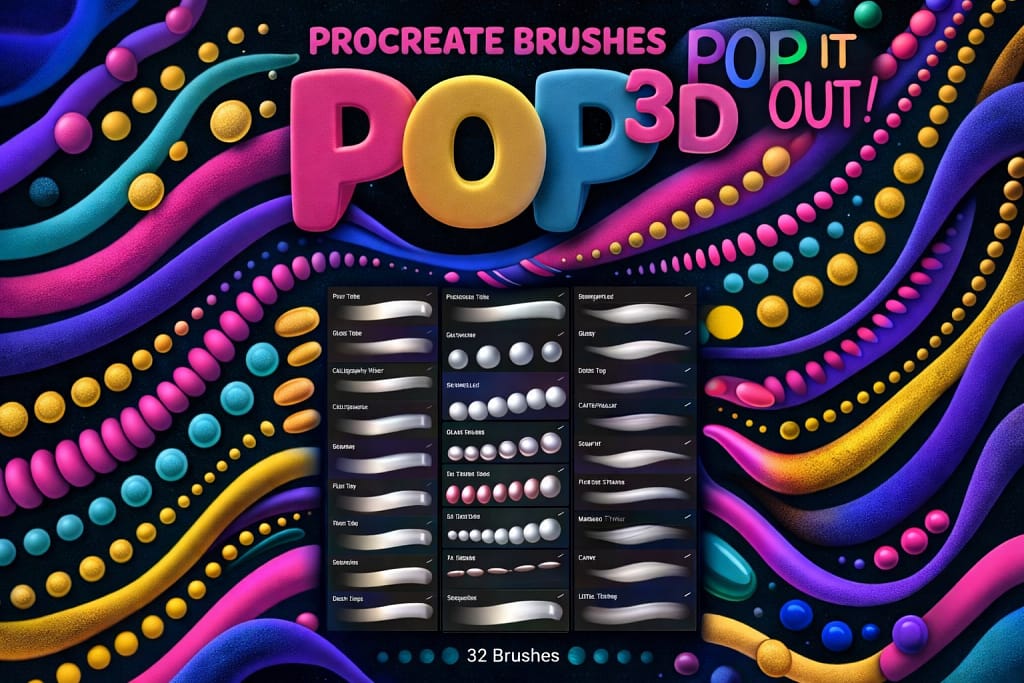
- ✅ Instant Dimension: The brushes automatically generate highlights and shadows, creating a tubular 3D effect as you draw.
- ✅ Captivating Textures: I found the grainy, colorful gradients perfect for modern, psychedelic artwork.
- ✅ Seamless Blending: The pressure sensitivity allows me to weave 3D strands over and under each other effortlessly.

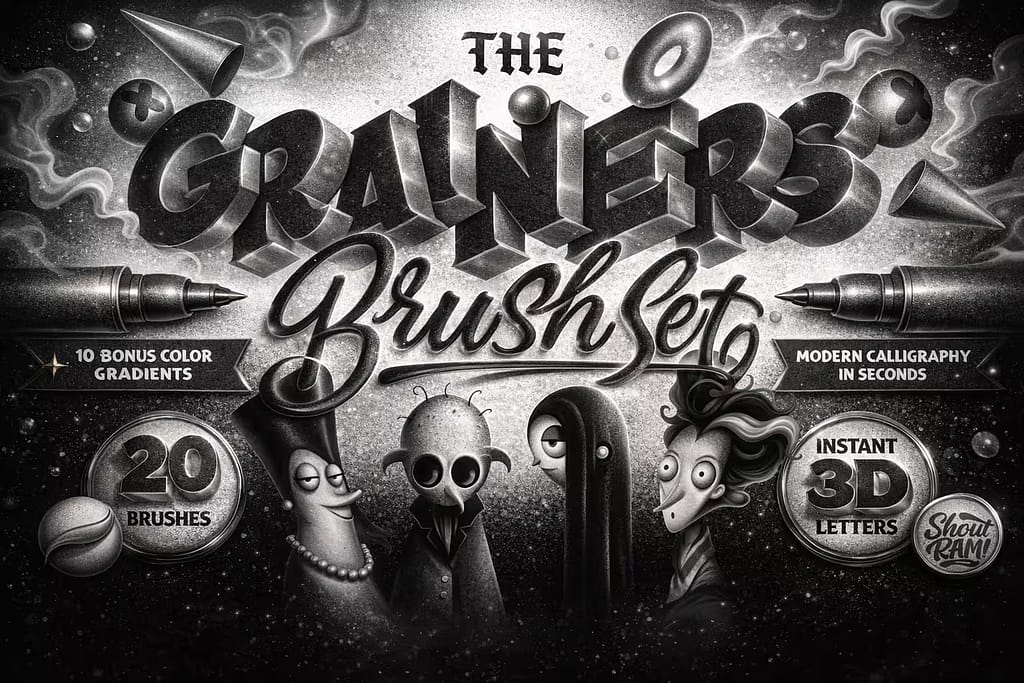
Why I picked it:
- ✅ One-Stroke Magic: I was shocked by how easily it extrudes my letters into 3D shapes simply as I write.
- ✅ Built-in Texture: The granular, powdery shading gives the 3D effect a wonderful retro, tactile feel.
- ✅ Easy Gradients: It comes with instruction maps that helped me apply stunning color gradients in seconds.

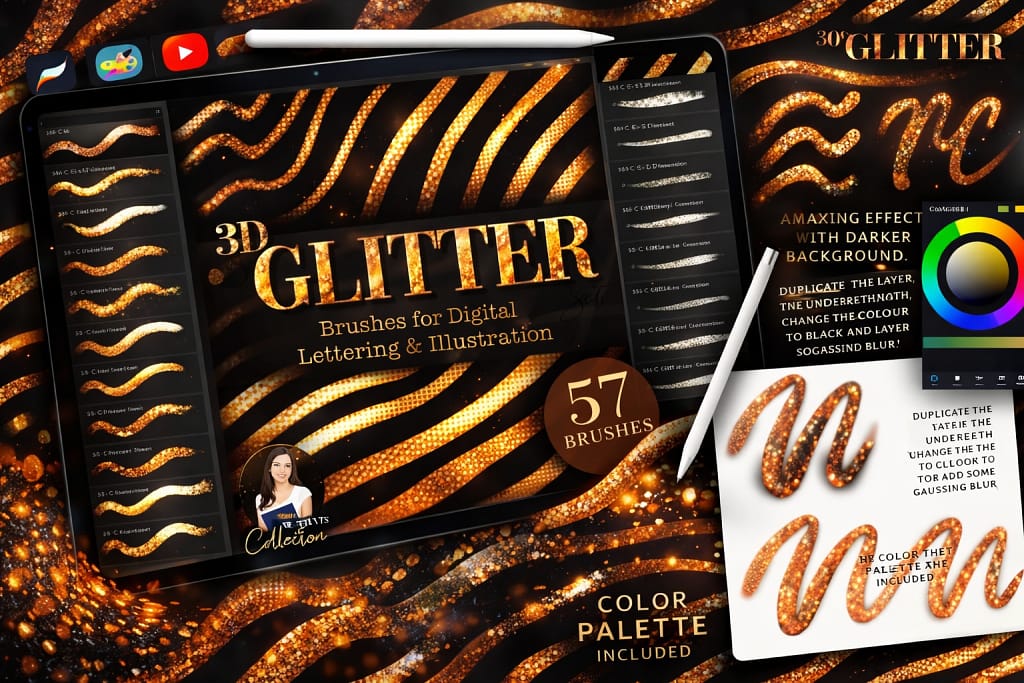
Why I picked it:
- ✅ True Metallic Shine: I love how the built-in contrast simulates actual light reflecting off sequins and foil.
- ✅ Seamless Application: The brushes lay down thick, 3D-looking glitter that doesn't pixelate when zoomed in.
- ✅ Perfect for Details: I use these to add realistic jewelry and glowing, raised accents to my character designs.

Why I picked it:
- ✅ Ultra-Smooth Rendering: The highlights are perfectly aligned, giving every stroke a flawless, plastic-like gloss.
- ✅ Highly Responsive: I noticed excellent taper and pressure control, making it easy to draw thick-to-thin 3D vines.
- ✅ Great for Y2K Art: If you draw pop-art or Y2K aesthetics, these bubble brushes will save you hours of rendering.

Why I picked it:
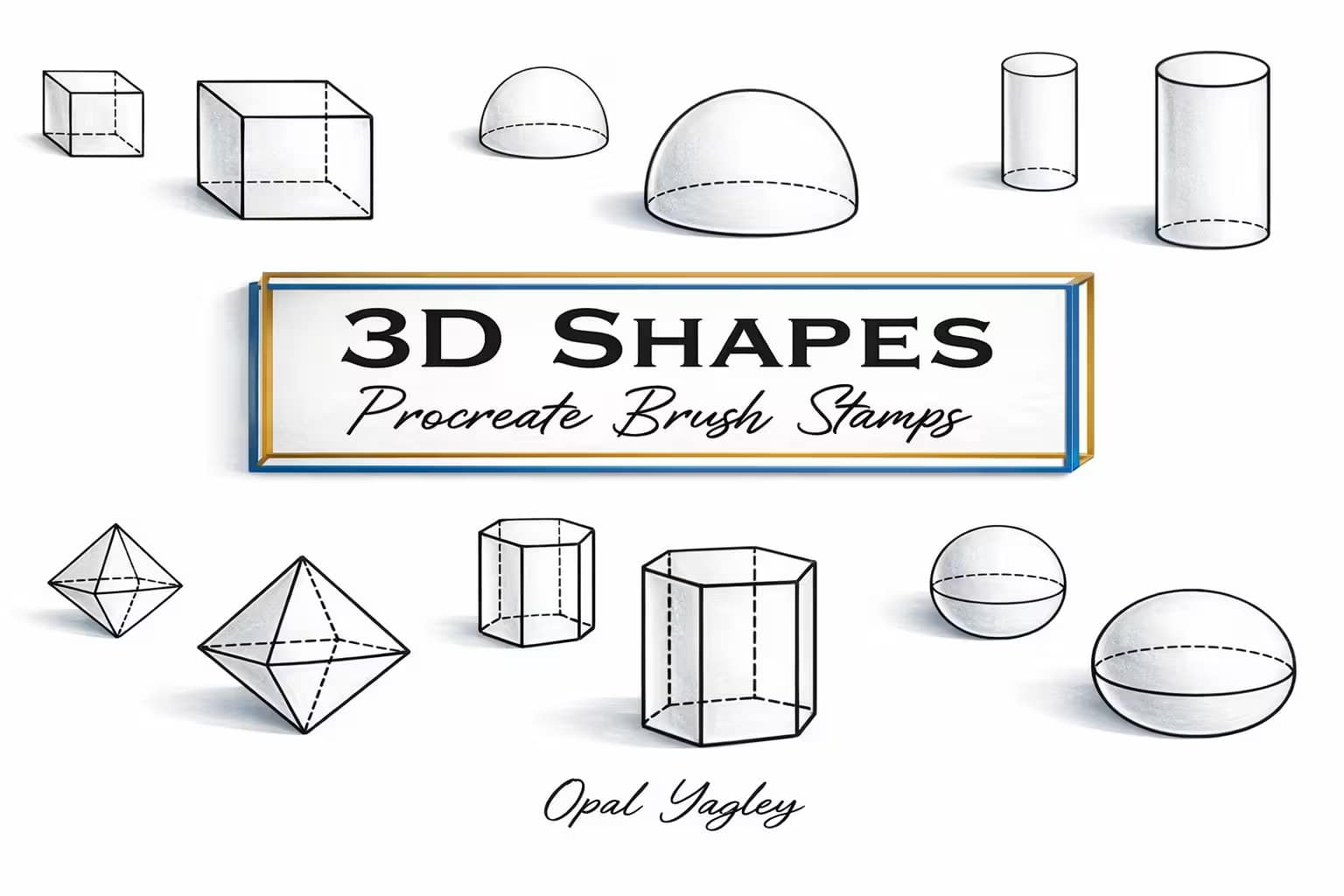
- ✅ Perfect Perspective: I instantly eliminated wonky vanishing points by using these stamps as my foundational grid.
- ✅ Solid & Dashed Lines: I really appreciated having both solid and wireframe versions to truly understand the volume.
- ✅ Time-Saving Foundation: It cuts down my sketching phase by half, letting me jump straight into the fun details.
FAQ
Procreate currently supports two main 3D file formats: .USDZ (Universal Scene Description) and .OBJ (Wavefront Object). While .OBJ files are the industry standard, .USDZ is optimized for Apple devices. Note that Procreate does not support .FBX or .STL files directly.
It's simple. First, download the .OBJ or .USDZ file to your iPad. Open Procreate, tap "Import" in the top right corner of the gallery, and select your file. Alternatively, you can drag and drop the file from the "Files" app directly into Procreate using Split View.
Absolutely. Using 3D models (like arms or legs) allows tattoo artists to visualize how a design wraps around the body's curvature, eliminating distortion. It helps in creating perfect stencils and showing clients a realistic preview of their future tattoo before inking.
No, you cannot model or sculpt 3D objects inside Procreate. Procreate is a painting engine for 3D surfaces. To create the models themselves, you need software like Blender, Nomad Sculpt (iPad), or Forger. Once created, you can export them as .OBJ files to paint in Procreate.
Procreate comes with a default "Model Pack" (including a skateboard and sunglasses). For professional work (human anatomy, tattoo canvases), we recommend the premium bundles listed in this article. However, you can access all these premium models for free by using the Creative Fabrica Free Trial.