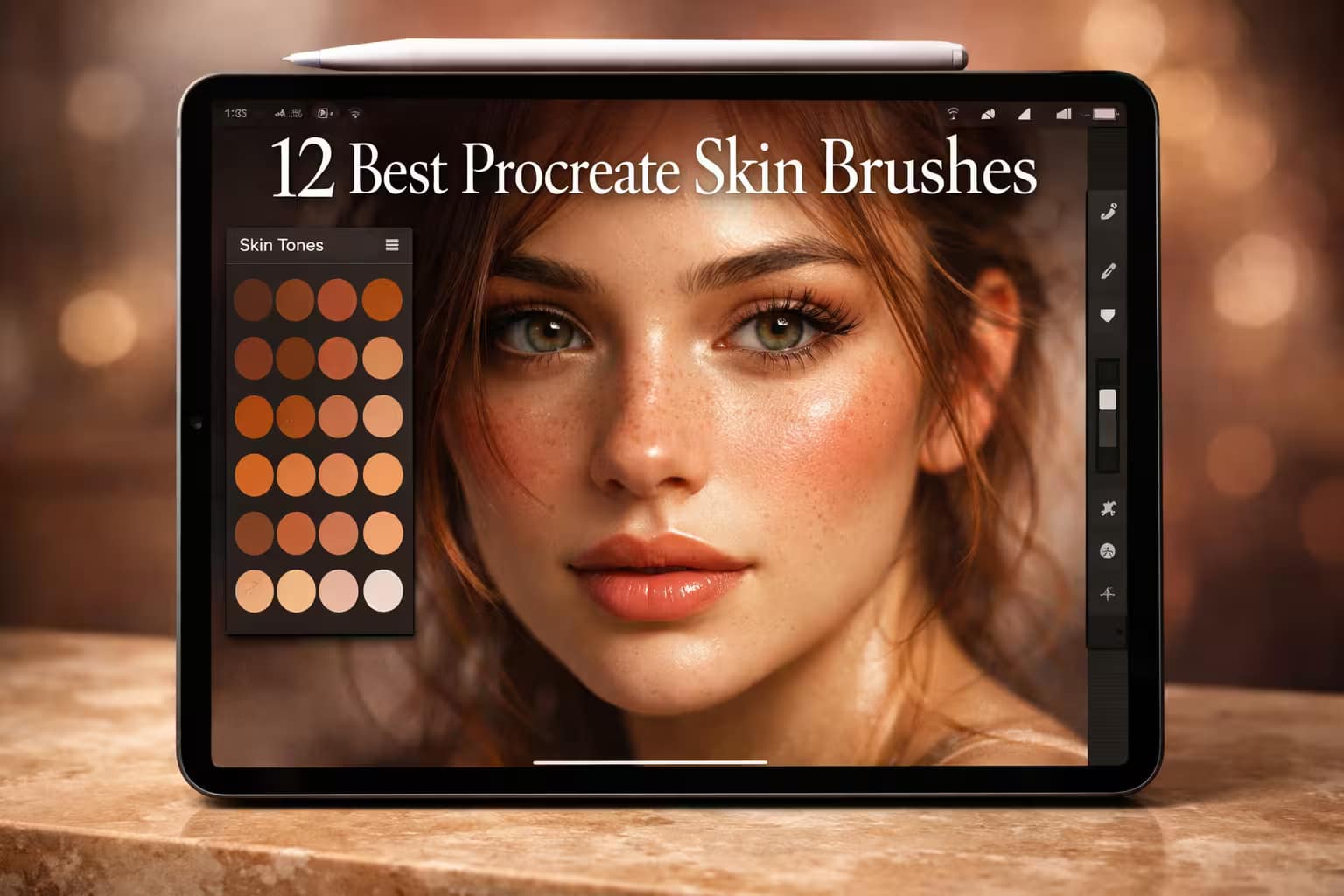
Painting skin digitally is notoriously hard. If you pick the wrong colors or use a basic airbrush, your portraits will end up looking either muddy and dirty, or like smooth, artificial plastic. To get that hyper-realistic, glowing, and textured look, you need professional tools.
I’ve tested and curated the 12 best Procreate skin brushes and color palettes. From lifelike pores and freckles to the perfect blending tools and exotic animal textures, this guide will completely transform your portrait workflow. Let's make your art breathe.
🏆 Editor’s Choice
The 4 must-have skin textures, palettes, and blenders for Procreate.
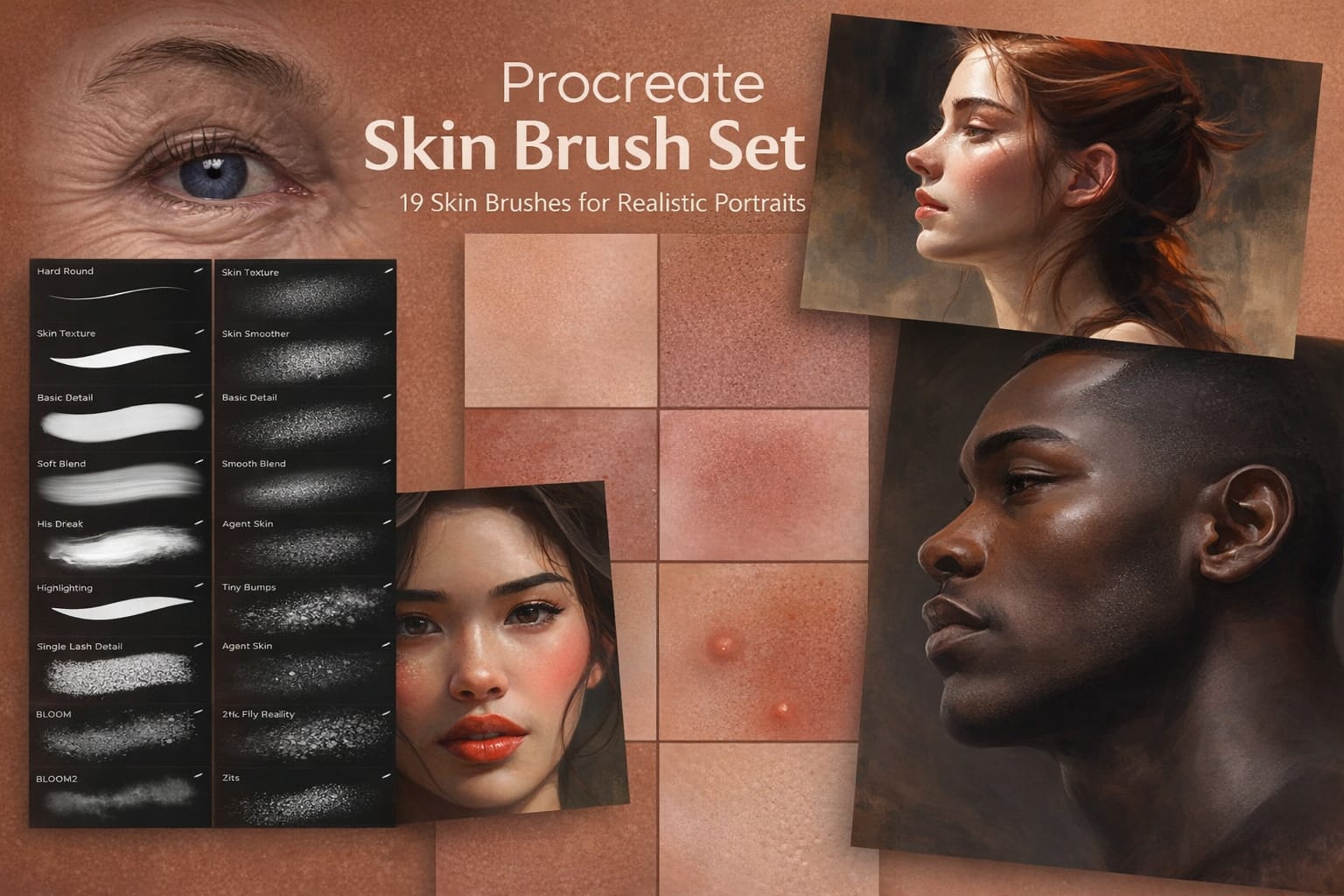
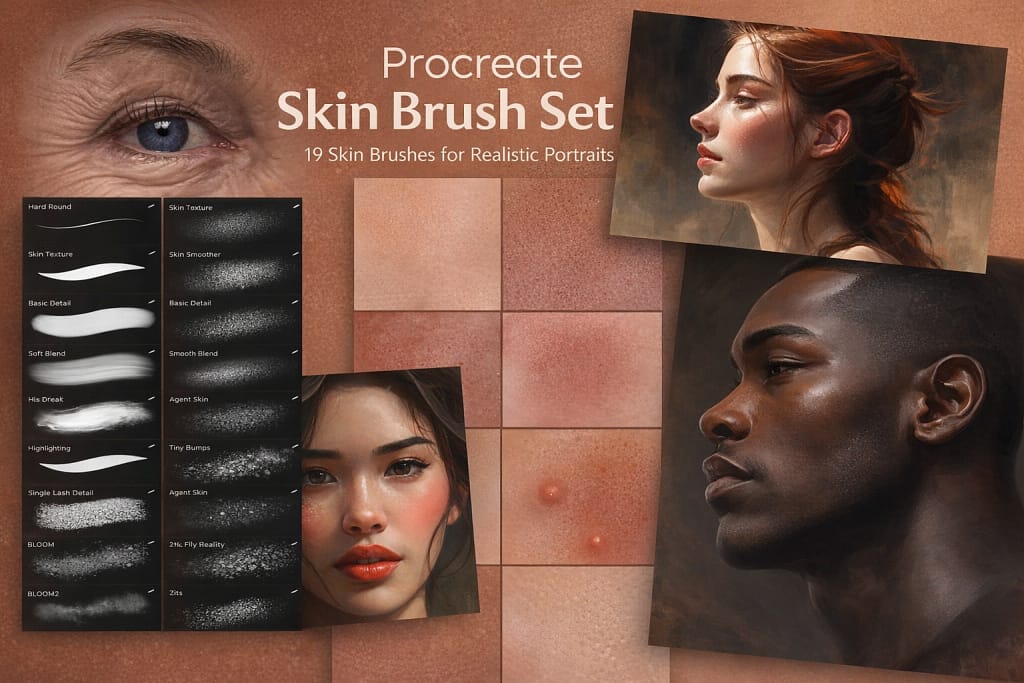
19 Skin Painting Brushes
The ultimate toolkit for realistic portraits. Contains 19 specialized brushes for painting pores, blemishes, wrinkles, and perfectly textured skin surfaces.
VIEW BUNDLE →
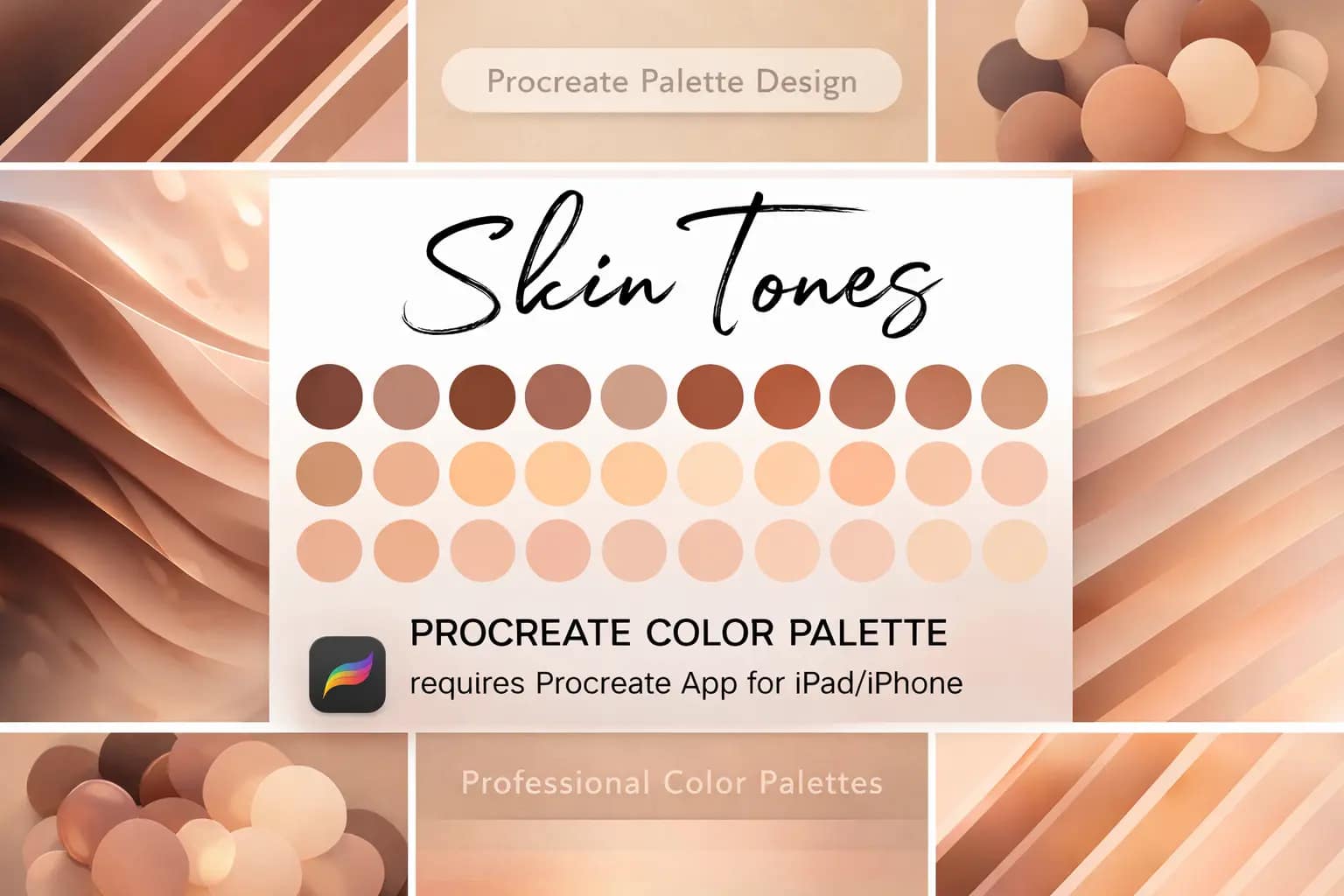
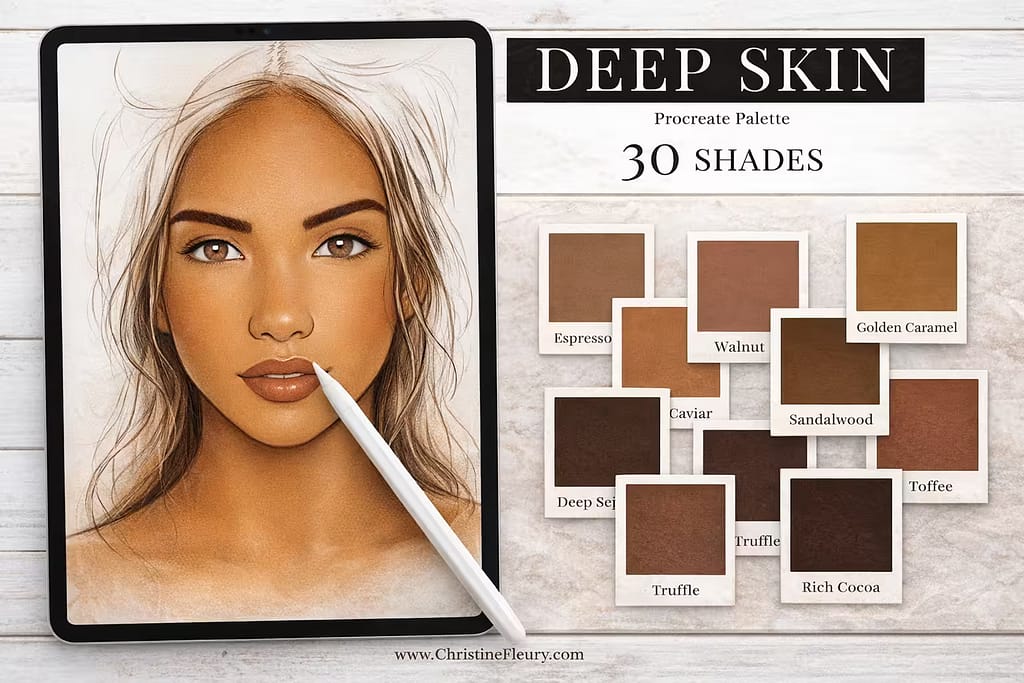
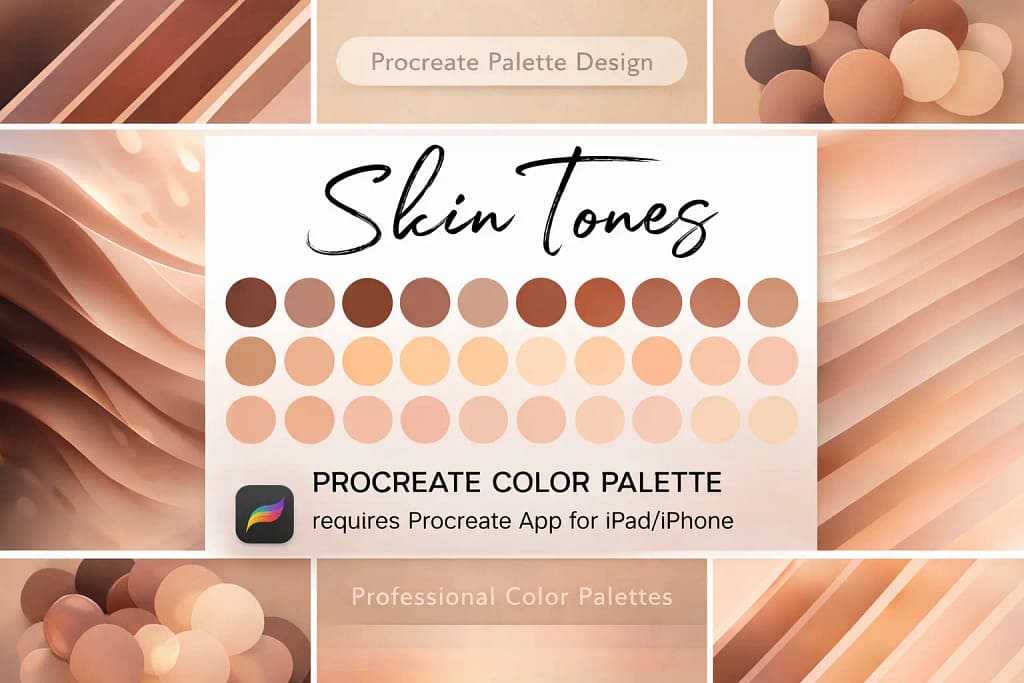
30 Skin Tones Palette
Stop guessing colors. This essential palette features 30 perfectly curated, natural skin tones, making your shading and highlighting process effortless.
VIEW BUNDLE →
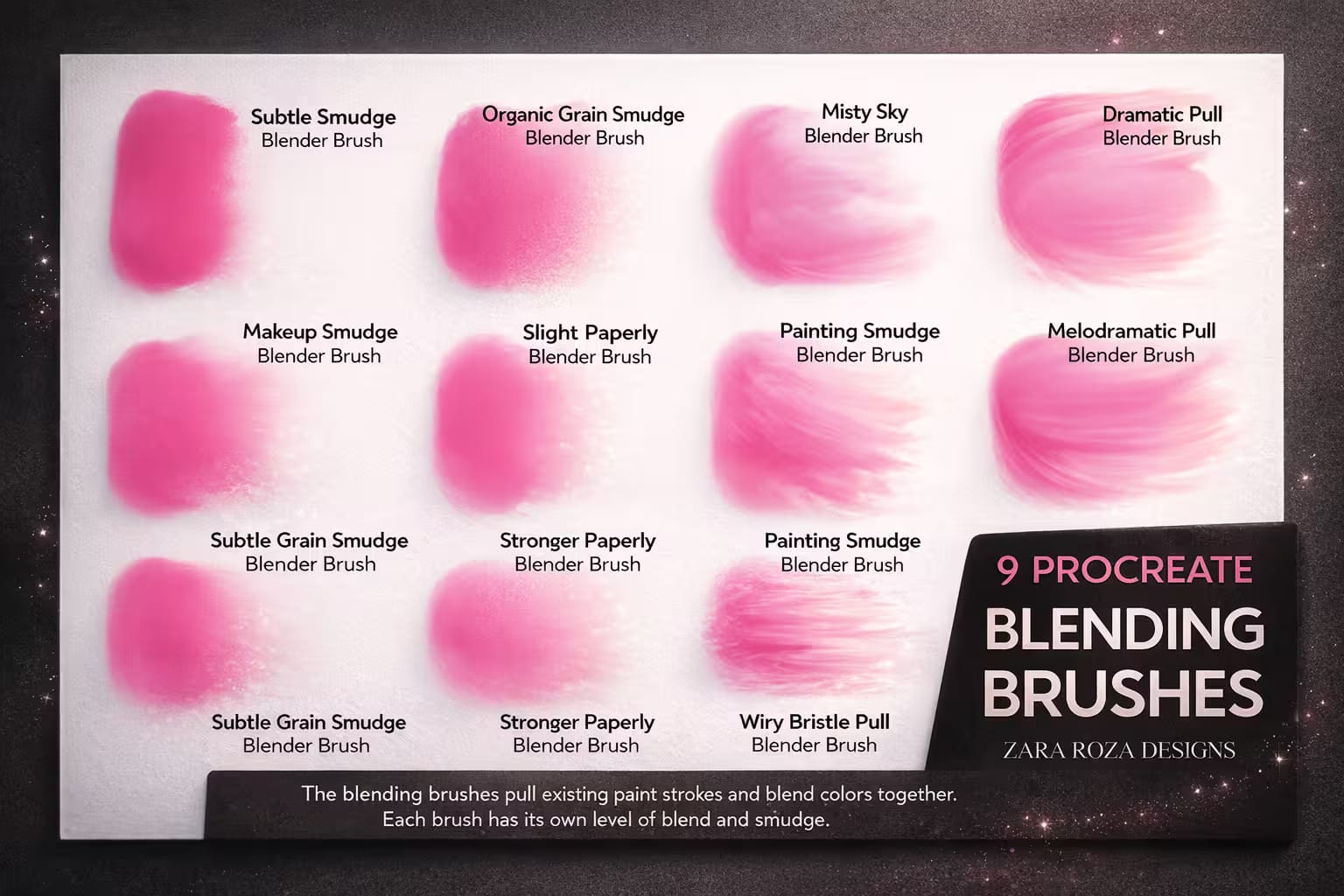
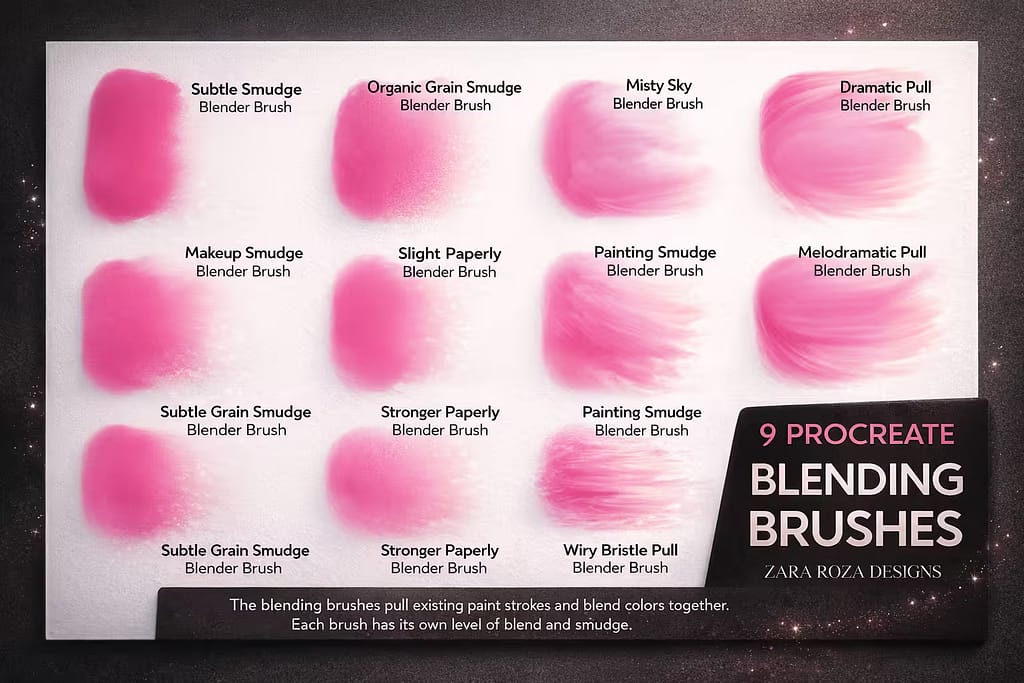
10 Blending Brushes
The secret to avoiding "muddy" skin. These 10 specialized blenders soften harsh shadows while retaining the canvas texture for a flawless, painterly look.
VIEW BUNDLE →
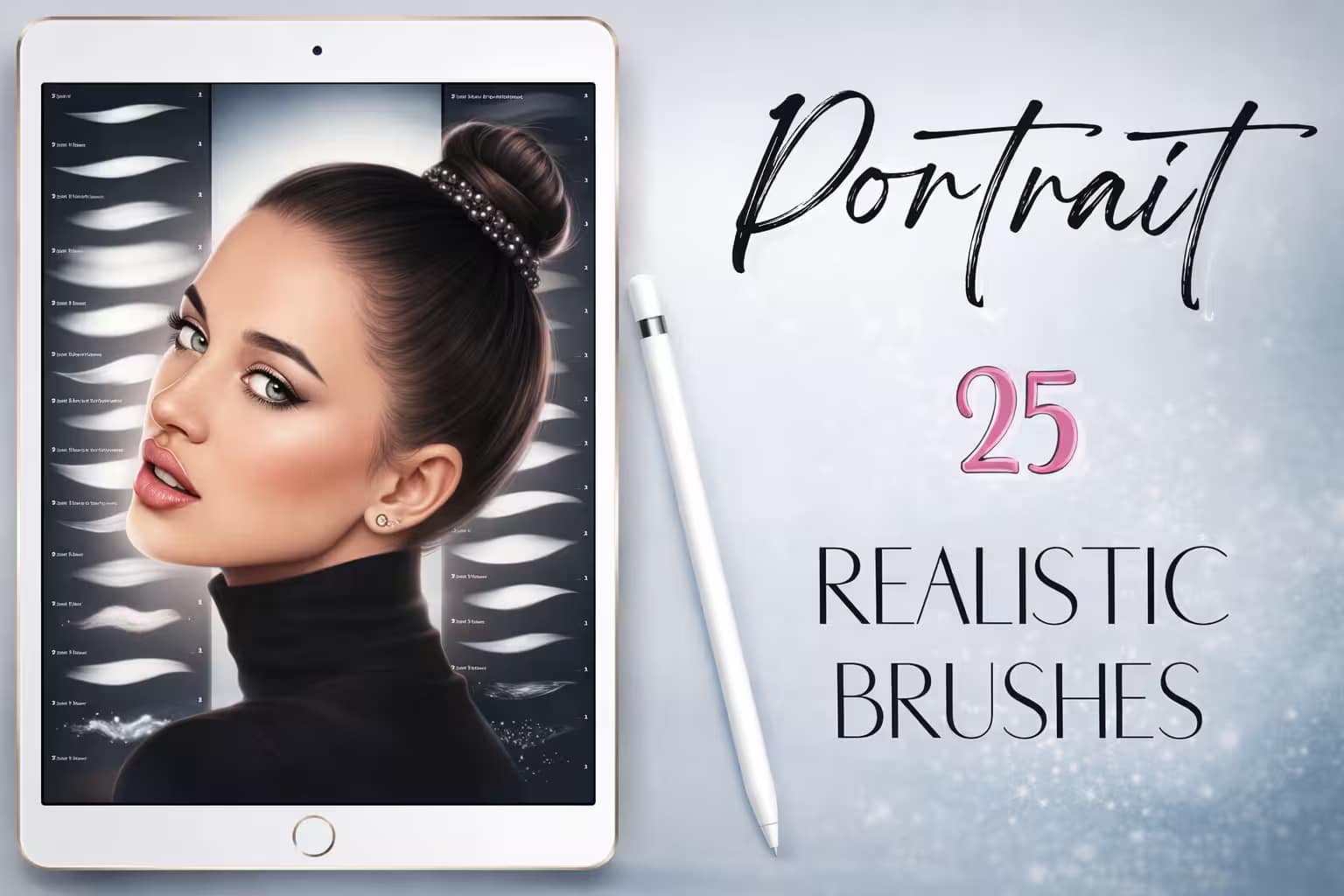
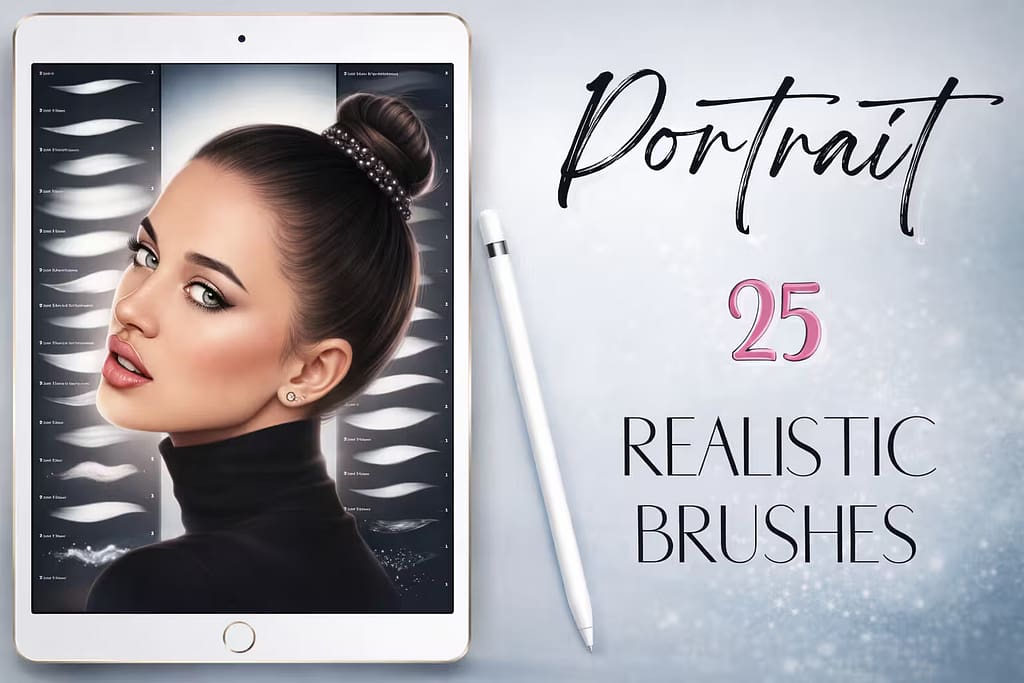
25 Portrait Brushes
A complete package for character design. It includes not just skin textures, but also essential brushes for hair, eyebrows, and glowing highlights.
VIEW BUNDLE →Download All Skin Brushes & Palettes for Free!
Why purchase these brush sets individually? You can unlock ALL 12 premium packs on this list immediately for $0.
Pro Tip: Activate the Creative Fabrica All-Access Free Trial to instantly download unlimited skin textures, blenders, and diverse color palettes.
⚙️ Quick Tip: How to Blend Skin Tones Without Looking "Muddy"
Block the Base Colors
Start by painting your shadows, mid-tones, and highlights with a solid, hard-edged brush. Don't worry about blending yet. Use a dedicated Skin Palette to ensure your colors are warm and natural, not grayish.
Ditch the Soft Airbrush
The biggest mistake beginners make is using the default Soft Airbrush to blend. This creates an artificial, "plastic" look. Instead, select the Smudge Tool and choose a textured blending brush.
Smudge with Texture
Lightly pull the darker color into the lighter color using short, gentle strokes. A textured blender will mix the hues while leaving behind a slight grain, mimicking the natural pores and variations of real human skin.
The 12 Best Procreate Skin Brushes & Textures
Below is our fully ranked collection. I've organized these tools into logical categories—starting with foundational skin color palettes and realistic pore textures, moving into details like freckles and scars, and finishing with exotic animal and fantasy scales for concept artists.
Why I picked it:
- ✅Hyper-Realistic Pores:I was amazed by how the "Open Pores" and "Blemishes" brushes instantly remove the artificial digital look from the canvas.
- ✅Built-in Blenders:I love that it includes two textured blenders specifically designed to smudge skin without losing the underlying grain.
- ✅Bonus Tools:It also comes with a single lash hair brush and a scaly brush for alien or reptile concept art, making it incredibly versatile.

Why I picked it:
- ✅Perfect Gradations:I found that the tones are perfectly stepped, meaning you can easily pick a shadow color that naturally matches your base tone.
- ✅Saves Hours of Time:Instead of tweaking the color wheel, I just tap a swatch and keep painting. It keeps my creative flow uninterrupted.
- ✅Natural Undertones:I appreciate that these aren't just flat peaches and browns; they have the subtle pink and olive undertones of real human skin.

Why I picked it:
- ✅No More Plastic Skin:I love that these blenders leave a slight grit behind, ensuring your shadows don't look artificially blurred.
- ✅Bonus Textures:I was thrilled to find 5 bonus textured paper backgrounds included, which instantly add depth to flat digital canvases.
- ✅Incredible Control:I found it easy to control the intensity—from a gentle blush blend on a cheek to a heavy, dramatic shadow on the jawline.

Why I picked it:
- ✅Complete Workflow:I appreciate that I can sketch, block colors, texture the skin, and draw the hair all without leaving this one brush folder.
- ✅Dedicated Hair Tools:I found the curly hair brush and eyelash stamps to be massive time-savers when finishing a portrait.
- ✅Beautiful Highlights:The included highlight and glitter brushes are perfect for adding that wet, glossy look to lips and the tip of the nose.

Why I picked it:
- ✅Zero Learning Curve:I love how intuitive these brushes are. You just pick a color and paint, and the skin-like texture appears naturally.
- ✅Lightweight:I found it to be a very clean, lightweight file that installs instantly and won't clutter your Procreate workspace.
- ✅Great for Fast Studies:If you are doing quick 30-minute portrait studies, this pack has exactly enough variety to get the job done fast.

Why I picked it:
- ✅Prevents Ashy Shadows:I found that the shadow tones are perfectly warmed up with red and orange undertones to keep the skin looking alive.
- ✅Beautiful Highlights:I loved the lighter swatches included for adding those striking, glossy highlights on the cheekbones and nose.
- ✅Essential Companion:I consider this a mandatory companion palette to pair with the basic skin tones set from earlier in this list.

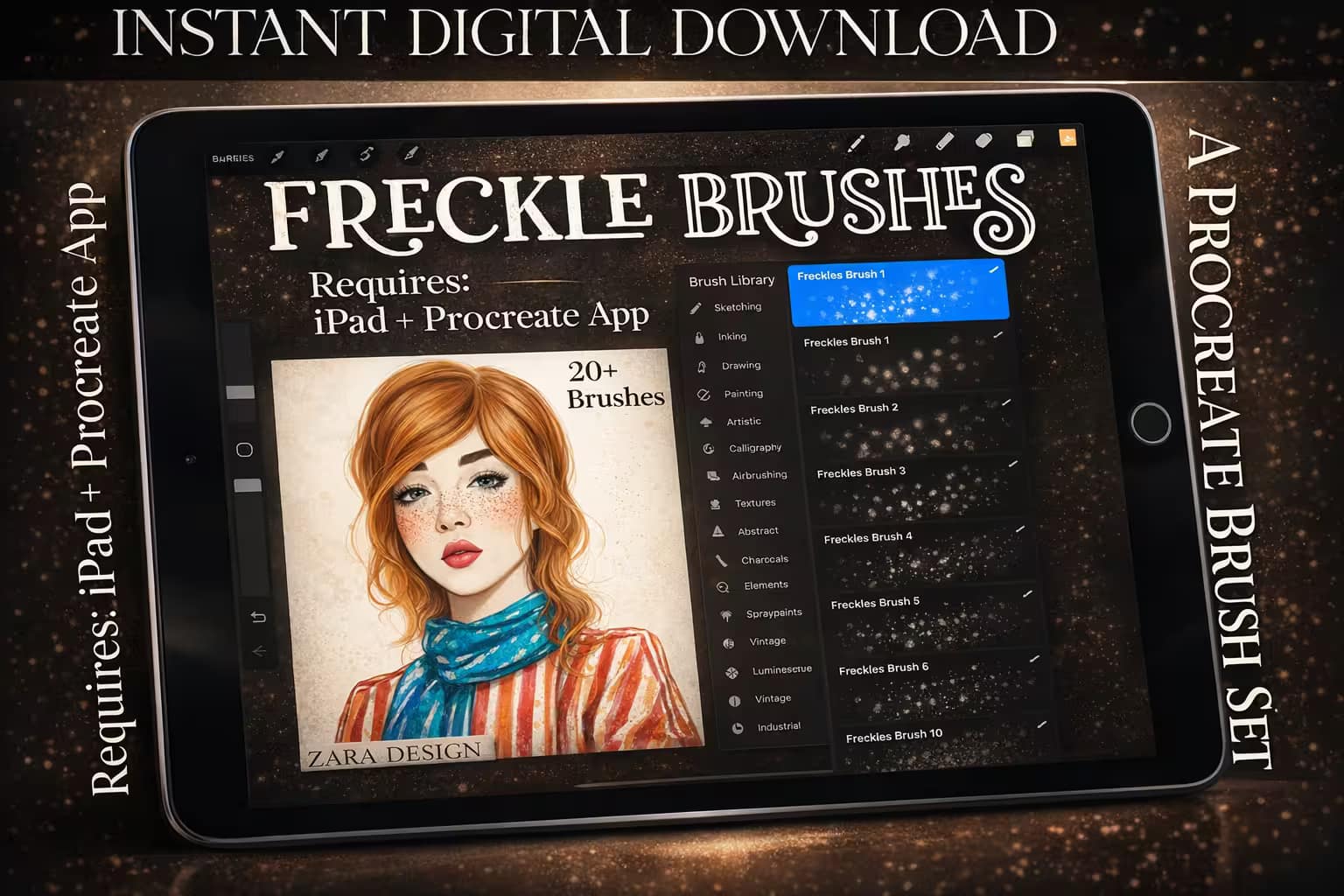
Why I picked it:
- ✅Organic Scattering:I noticed the brushes perfectly randomize the size and opacity of the dots, so the freckles never look like a stamped pattern.
- ✅Multiple Densities:I found it very useful to have options ranging from a light, sun-kissed dusting to heavy, dense freckle clusters.
- ✅Also Great for Pores:By lowering the opacity and choosing a skin-matched color, I also used these to add subtle skin pores.

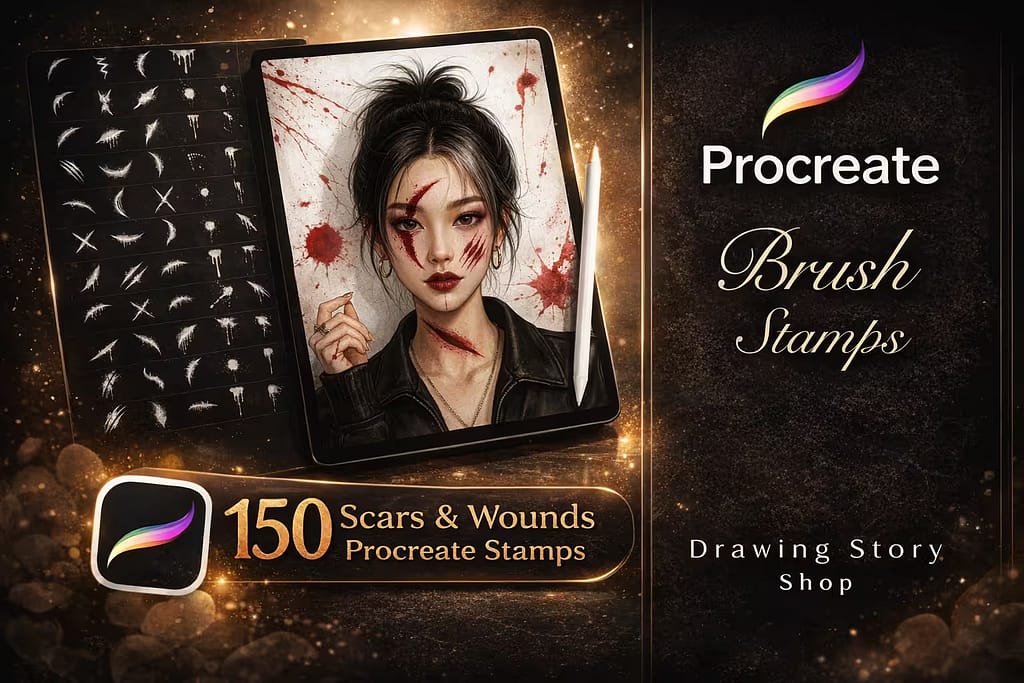
Why I picked it:
- ✅Storytelling Details:I found that adding a healed scar or a fresh cheek scratch instantly gave my characters a deeper backstory and tough aesthetic.
- ✅Huge Variety:I loved the range—from tiny lip splits and band-aids to massive sword slashes and bleeding wounds.
- ✅Easy to Blend:Using Procreate’s "Multiply" blend mode, I noticed the stamps sit perfectly over existing skin tones.

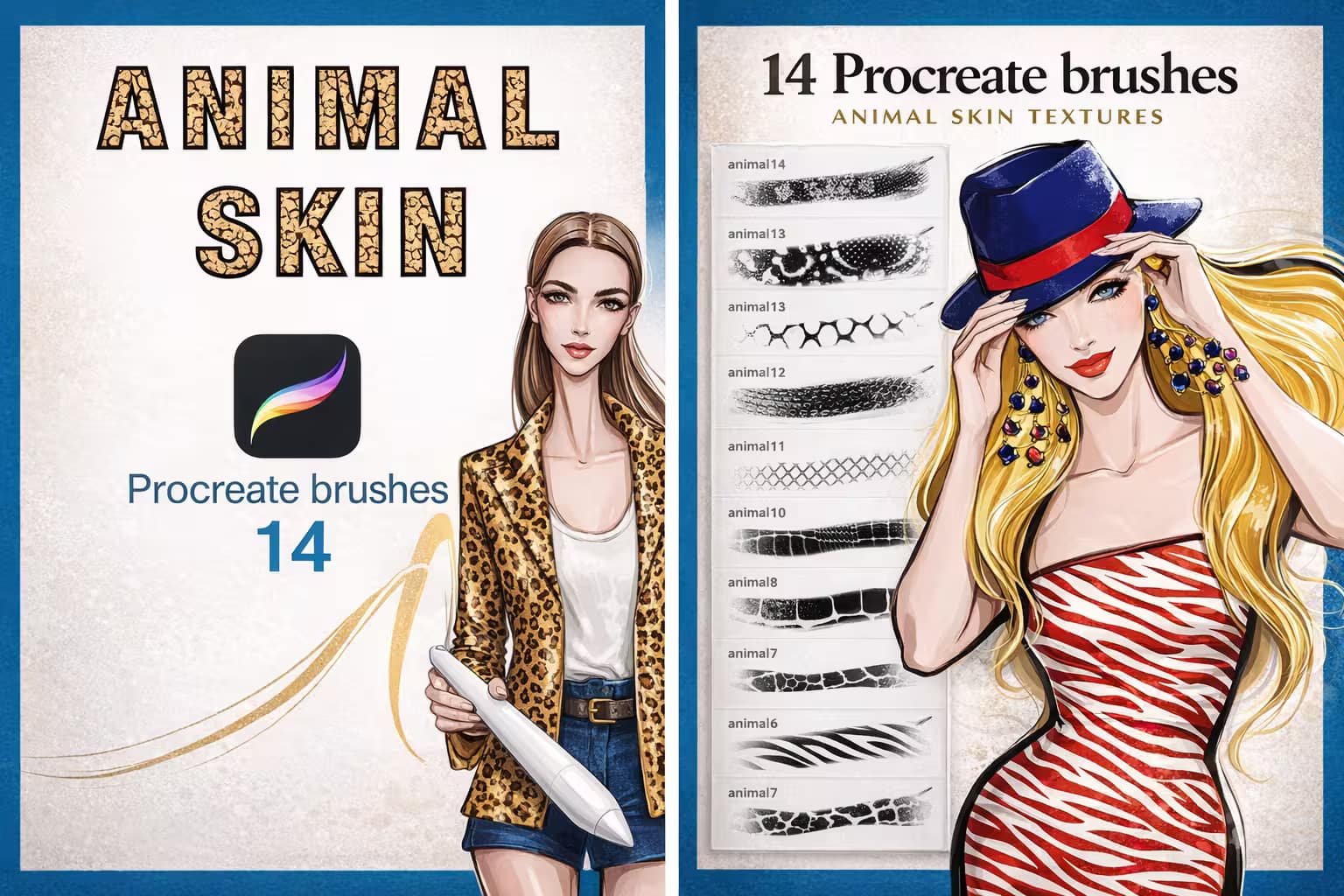
Why I picked it:
- ✅Seamless Patterns:I was impressed that no matter how large an area I painted, the animal skin patterns never showed visible "seams" or breaks.
- ✅Fashion Lifesaver:I found this essential for quickly texturing jackets, bags, and shoes in modern fashion sketches.
- ✅Scalable Density:Adjusting the brush size easily changes the scale of the animal spots, giving you complete control over the print size.

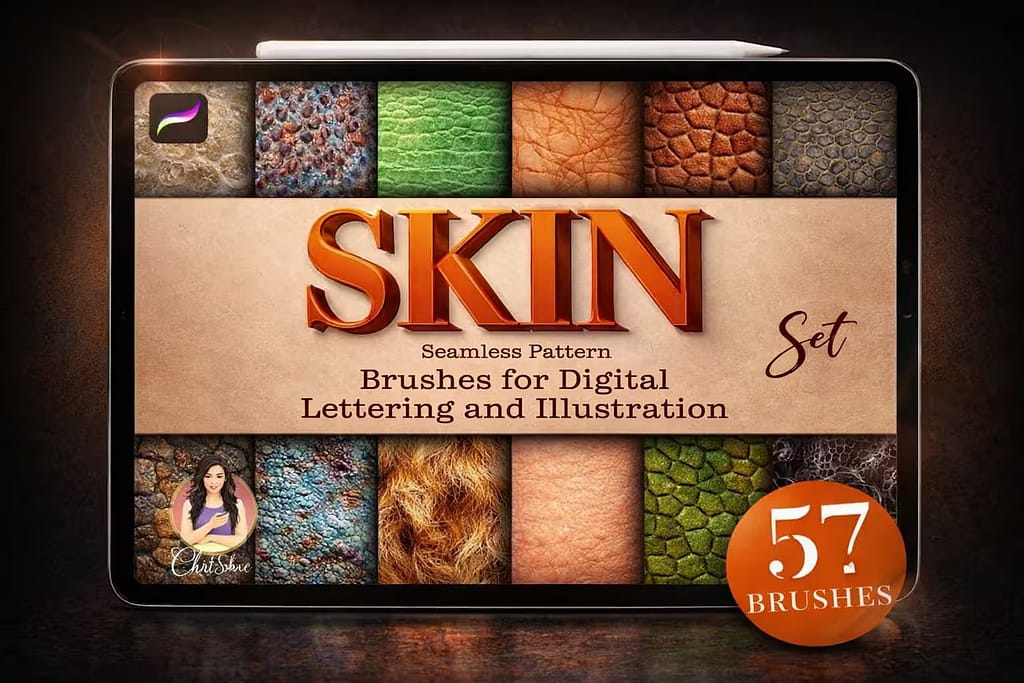
Why I picked it:
- ✅Amazing Reptile Scales:I loved using the snake and lizard textures to quickly detail dragons and fantasy creature concepts.
- ✅Great Value:I appreciate the versatility; jumping from painting a human face to a scaly monster within the same brush folder is super convenient.
- ✅High Detail Density:I noticed the bump-mapping on the animal textures is very strong, creating an instant 3D, tactile illusion.

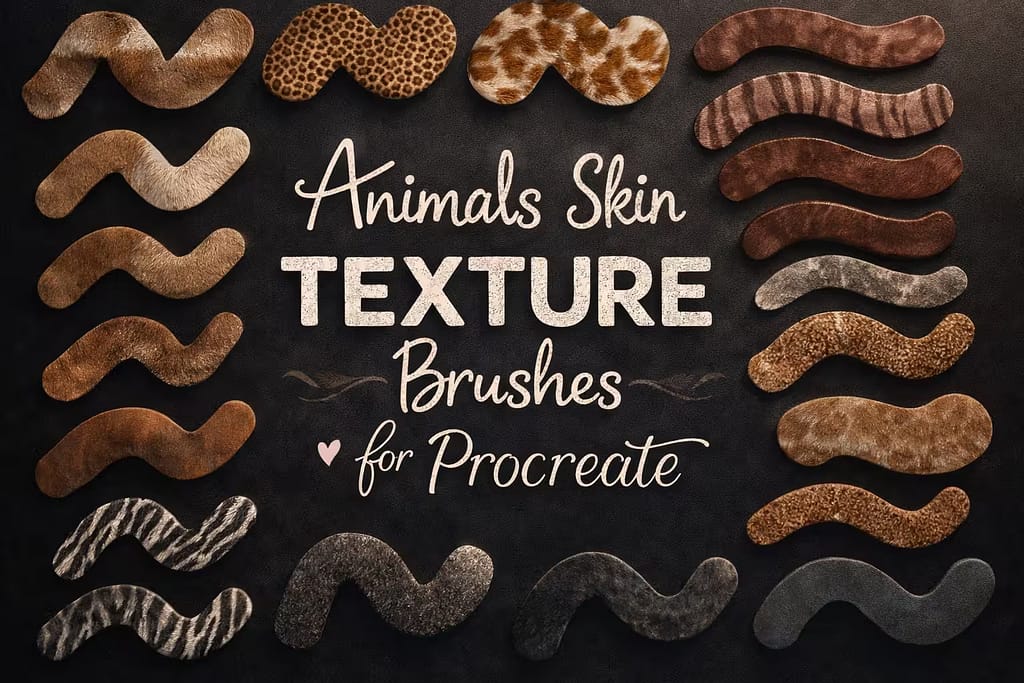
Why I picked it:
- ✅Free Color Palette:I found the included 60-color swatch file incredibly useful for getting realistic earth tones for the animal skins.
- ✅Wide Variety:I loved the diversity, covering everything from safari animals to subtle, leathery textures.
- ✅Pressure Sensitive:I noticed the brushes react beautifully to the Apple Pencil, allowing you to fade the animal print into shadows naturally.

Why I picked it:
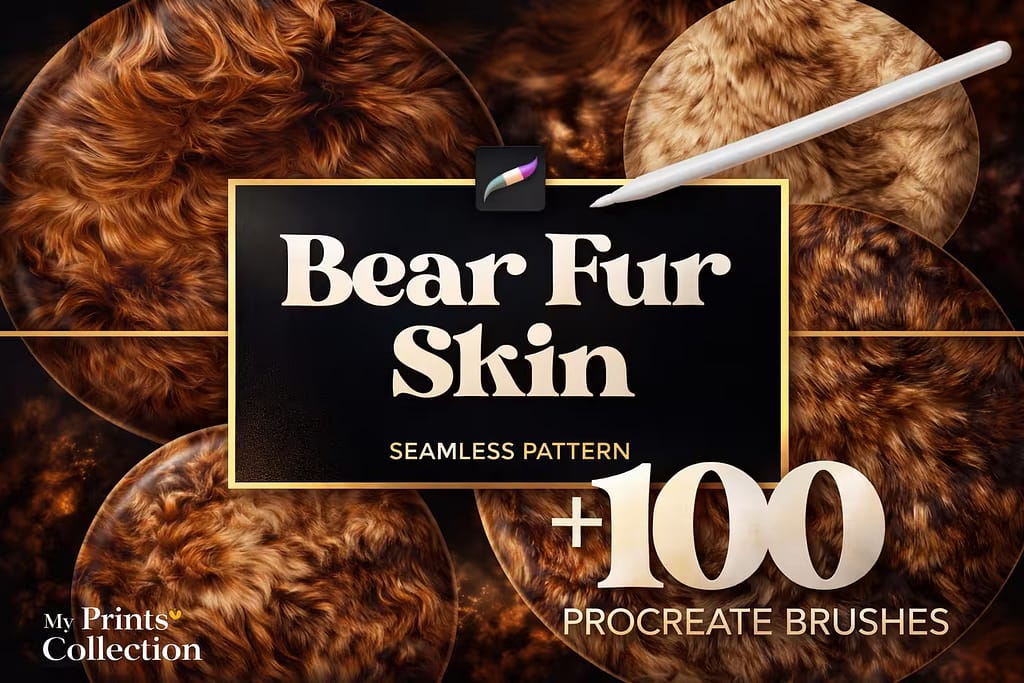
- ✅Incredible Detail:I was blown away by the sharpness of the individual hair strands; it literally looks like a high-res photograph.
- ✅Seamless Application:I found it incredibly easy to fill large areas of a canvas without the fur pattern looking repetitive or boxy.
- ✅Great for Pet Portraits:While marketed as "bear fur," I used these to add realistic texture to dog and cat portraits with phenomenal success.
FAQ
The biggest mistake beginners make is using the default Soft Airbrush to blend colors, which creates a dirty, artificial look. Instead, select the Smudge Tool and use a dedicated, textured blending brush. Gently pull the colors together with short strokes. This retains the natural grain and pores of the skin while smoothing the transition.
While you can manually color-pick from photos, it's tedious. The best way to get professional skin tone palettes for free is by activating a Creative Fabrica All-Access Free Trial. This gives you instant, zero-cost access to premium swatches covering deep skin tones, anime bases, and pale textures with exact highlight and shadow matches.
Realism comes from micro-details. After you lay down your base colors and blend the shadows, create a new layer. Use specialized skin brushes to lightly tap in pores on the cheeks and nose, add scattered freckles, and draw fine wrinkles. Keep this texture layer on a low opacity or set the Blend Mode to "Multiply" for a natural finish.
Yes! If you are drawing fantasy creatures, reptiles, or designing fashion prints, you don't need to draw every scale by hand. There are seamless pattern brushes designed specifically for animal skin—such as snake scales, leopard spots, and bear fur—that you can paint over large areas in seconds.